Showing posts with label Taskbar. Show all posts

Monday, February 6, 2012

bench3

Windows 8 Got a Hidden Start Menu Orb

Windows 8 operating system comes with quite a few major design changes over previous versions of the Windows operating system.

The new Metro UI interface obviously makes the top of that list. Still most of the users are not sure whether it will improve their workflow on desktop systems. The Windows 8 Beta, which will supposedly be released later this months, should give everyone an answer to that.

A recent version of Windows 8 development preview suggests that Microsoft may have plans to change the desktop interface significantly as well. The developer preview released last year already crippled the start menu that Windows users were using in previous versions for various tasks such as starting applications, searching or opening the Control Panel.

The latest development preview version of Windows 8 has the taskbar without a start menu button.  However, the start menu button appears only when users move the mouse (or their finger) to the left lower corner of the screen.

Windows 8 Got a Hidden Start Menu Orb

The basic idea behind the move, besides removing noise from the interface, is to make users use the taskbar and the new charms for all the things they are doing on the desktop. Charms basically appear when you move the mouse to the edge of the screen.

Pinning applications directly to to the taskbar will become more of a necessity in Windows 8, considering that users do not have options anymore to start apps from the start menu. What about seldom used applications, you may ask? Your only options at this point in time seem to be the built-in search or to use windows Explorer to navigate to application folders directly.

What’s your take on the change? share your comments.
Read More

Friday, July 15, 2011

bench3

Fix Deleted Power Icon On Windows 7 Taskbar

This article will help you troubleshoot in case if you have accidently deleted or by some way you lost the little power icon on the Windows 7 Taskbar near the system clock.

If the battery icon does not appear in the left corner and originally by design, Windows 7 will have its power icon (Charging / or on battery)will be there on the right bottom of the screen. How to fix?

Possible, the icon wont be deleted. In case if it is hidden you can find it this way.

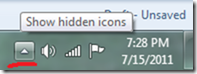
  • To find the settings click the small triangle to the left of the icons in the task bar (bottom left of the screen). 

Fix Deleted Power Icon On Windows 7 Taskbar 1

This might display the missing icon in the menu if it does then you want to make it permanently visible. 

If it doesn't you still need to follow these instructions.

  • Right click the Task bar (bar with start button along bottom of screen).
  • Choose properties.
  • Click the Customize button in the Notification area section of the Taskbar tab.

If you icon was in the fly out menu from earlier it will be listed hare.  Change the setting to Show Icon and notifications.

  • If your Power icon is not visible in this list click the link "Turn system icons On or Off".

Fix Deleted Power Icon On Windows 7 Taskbar2

  • Power should be listed here.  Change the setting to On.
  • Click the back button (top left).  Check the settings for what will display.
  • When finished click OK.

If you still cant get your icon back…

Well, May be, you had done any changes to the computer prior to the issue. If you remember any thing, try to undo those changes, if you are not sure, try system restore to the earlier version. please check the link Using System Recovery Options In Windows 7 to know how to use System restore in Windows 7

I would recommend you to perform System Restore to the point where it was working fine and check if it helps. View the following link to perform System Restore. Using System Recovery Options In Windows 7

Read More

Wednesday, June 8, 2011

bench3

Get Back The Missing Taskbar In Windows 7

The taskbar is the long horizontal bar at the bottom of your screen. Unlike the desktop, which can get obscured by the windows on top of it, the taskbar is visible almost all the time.

Note: Microsoft incorporated a taskbar in Windows 95 and it has been a defining aspect of Microsoft Windows's graphical user interface ever since.

The taskbar is a handy Windows 7 feature that usually squats along the bottom of your screen. Sometimes, unfortunately, it up and wanders off into the woods. Here are a few ways to track it down and bring it home.

If your taskbar suddenly clings to an edge of your desktop — or even the  ceiling — try dragging it back in place: Instead of dragging an edge, drag  the taskbar from its middle. As your mouse pointer reaches your desktop’s  bottom edge, the taskbar suddenly snaps back into place. Let go of the  mouse, and you’ve recaptured it.

Follow these tips to prevent your taskbar from wandering:

✓ To keep the taskbar locked into place so that it won’t float away, right click a blank part of the taskbar and select Lock the Taskbar. Remember, though, that before you can make any future changes to the taskbar, you must first unlock it.

✓ If your taskbar drops from sight whenever the mouse pointer doesn’t hover nearby, turn off the taskbar’s Auto Hide feature: Right-click a blank part of the taskbar and choose Properties from the pop-up menu. When the Taskbar and Start Menu Properties dialog box appears, deselect the Auto-Hide the Taskbar check box. (Or, to turn on the Auto Hide feature, select the check box.)

Read More
bench3

Get Back The Quick Launch Toolbar In Windows 7

Have you ever wondered where your My Quick Launch Toolbar Is Gone in Windows 7? Actually, many people don’t know what it was called, but the Quick Launch toolbar — that handy little strip of icons resting near the Start button — served as a single click launching pad for favorite programs in both Windows XP and Vista.

Windows 7 strips the Quick Launch toolbar from its new, revamped taskbar. In the toolbar’s place, the taskbar now shows three icons next to your Start button: Internet Explorer, Libraries, and Media Player. Don’t like those icons? Right-click any offender and choose Unpin This Program from Taskbar from the pop-up menu.

Get Back The Quick Launch Toolbar In Windows 7

You can also treat that portion of your taskbar as a makeshift Quick Launch toolbar by adding your own icons there. Follow these steps to copy icons from your Start menu to the taskbar:

1. Click the Start menu and locate your cherished program.

2. Right-click the program’s icon and choose Pin to Taskbar.

Feel free to rearrange icons on the taskbar by dragging them with the mouse to the right or left. By pinning your favorite program’s icons to the taskbar’s left side, you can keep them separate from the taskbar’s icons of running programs, which stay on the right side.

Read More

Tuesday, April 26, 2011

bench3

Pin To Start Menu And Task Bar For Default User

There are many possibilities to pin items to the start menu and task bar for the default user in windows 7 so that when a new user logs on, they have what’s been customized. 

The setting the Copy Profile to true doesn't seem to catch these customizations. I've been able to use the CopyProfile command to keep items that I've pinned to the Start Menu, but not the things that I've pinned to the Taskbar.

However, you can define up to five things that you want everyone to have pinned to their Taskbar using the unattend.xml files...that's one way of getting things there, unfortunately, that does not get rid of the "default" MS items that are already there (IE, MediaPlayer, etc).

Here's a way to do it using a script though:

http://blogs.technet.com/deploymentguys/archive/2009/04/08/pin-items-to-the-start-menu-or-windows-7-taskbar-via-script.aspx

You could in theory also configure these things using Group Policy Preferences.  There are two components to the Taskbar items, one is a registry key and the other is a file system shortcut.  The registry keys define what is there and in what order the items appear on the taskbar.  If you use GPP you could set both of those things up for all new profiles.

However, I'm leaning towards using the script and something like Active Setup which will allow you to run a one-time command for every new user that logs in to a box.  That way I can remove the things I don't want and add in the ones that I do...

Surely Microsoft should be able to come up with a better way of customizing the taskbar and start menu for users.

Read More

Thursday, March 24, 2011

bench3

Windows 7 Task Manager Has Lost Its Header Tabs

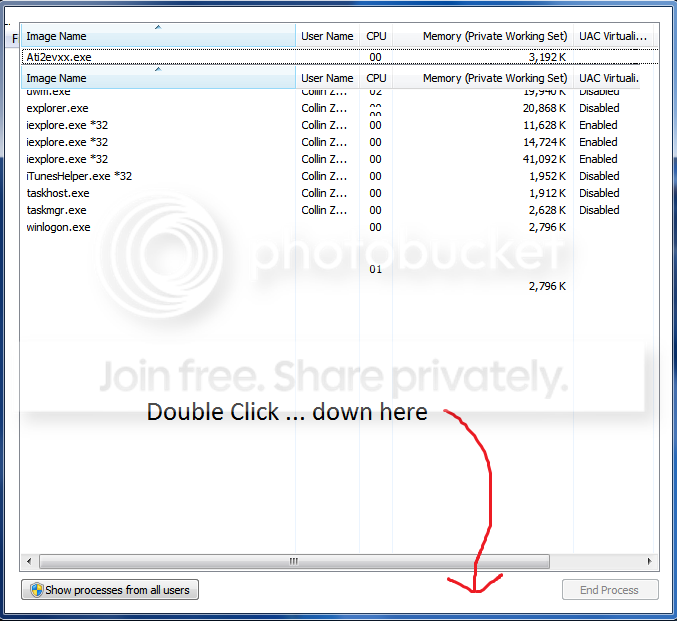
Somehow the task manager has lost the header tabs to move from applications to processes to network. It was there originally.

I also lose from time to time my volume control icon, and it doesn't become hidden, it just disappears completely. To change the volume I have to either go into the control panel/sound and then adjust the volume and leave that open if I need to turn it down. OR reboot and it sometimes comes back.

When I go to 'notification Icons" in control panel the icon and lettering for sound icon is not bold or high lighted but instead it is diminished. I have also seen a popup stating that modification will take affect when it (the sound) is activated as a pop up, but can't remember where I saw that happen.

Solution:

Double click on the edge of Task Manager.

http://i338.photobucket.com/albums/n410/stone_cold_05/TaskManager.png

---- Norton AntiVirus 2009

Windows 7 Task Manager Has Lost Its Header Tabs

In addition to the above mentioned solution, you can open the Notification Area Icons control panel item and you can try clicking the "Restore default icon behavior" link near the bottom of the window and see if that fixes the MIA volume control.

Read More