Showing posts with label Start Menu. Show all posts

Saturday, April 21, 2012

bench3

Get Windows 8 Tile and Start Screen In Windows 7

If you like Windows 8 Tile Based Start Screen, you might want to get the tile-based Windows 8 Start screen in your Windows 7 OS as well. If that is your wish, this article is right for you.

Just like in Windows Phone 7 Windows 8 includes tile-based Start screen, which replaces Windows Start menu with a customizable, scalable full-screen view of apps. These live tiles provide notifications, up-to-date information from installed apps. And most importantly, it is now possible to get the same User Interface in Windows 7 System as well.

Getting the new Metro UI based Start menu is pretty easy if you follow the steps given below.

Get Windows 8 Tile and Start Screen In Windows 7

Step-by-Step Instructions To Get Windows 8 Tile and Start Screen In Windows 7:

The developer of Omnimo Rainmeter skin, fediafedia, is working on a new version of the skin which will bring the exact Windows 8 Tablet UI Start menu to Windows 7, with Start at the top left and user picture at the top right of the screen.

1. Download and Install Rainmeter software.

2. Once you are done with Rainmeter installation, download Omnimo 3.1 skin for Rainmeter.

3. Extract the contents of the zip pack and then double-click on Omnimo.rmskin file to start installing the skin.

4. Once installed, add new panels and arrange them one by one to get the Windows 8 Start screen look.

Job Done, and enjoy your new User Interface on Windows 7.

Read More

Monday, April 2, 2012

bench3

Free App to Bring Start Menu on Windows 8 Desktop | Download Stardock

Windows 8 has lots of new features and easier, but still missing the traditional start menu, and to be simple, most of us want the intuitive functionality of what we’re used to and is most productive for us, with some of the new Features of Windows 8.

While most of the users who have updated to Windows 8 are happy with the Start screen and other features, a small number of users aren’t exactly happy with the Metro Start. For users who can’t live without a Start menu, Stardock Corporation has released a new tool named Start8 to bring back Start menu in Windows 8.

The Start button has been one of the best known images in Windows for over sixteen years now. Now on the latest Windows 8, when I look in the corner of my screen and just see an icon for Outlook, it’s still a little jarring. And I’ve been using Windows 8 for months now. So where did the Start button go?

Start8 is a free software that adds the missing Start menu to the taskbar. Upon installing the application, you will see the Windows 7-style Start orb on the taskbar and clicking on the orb will open the Start menu. As you can see in the below picture, Start8 is a Metro-inspired Start menu but includes all features and functions that you would expect in a Start menu.

When the program is running, pressing the keyboard Windows logo key will open Start menu. To switch to the Metro Start screen, you need to either move the mouse cursor to the lower left bottom and then click on the Start or use the Charms Bar. A right-click on the Start orb gives quick access to Run and Shutdown options.

Start8 supports both x86 and x64 versions of Windows 8. Please note that you will need to enter your email address to download Start8 program.

Large number of long time Windows users on the PC have not been happy that the familiar Start menu cannot be accessed on the desktop version of Windows 8.

Free App to Bring Start Menu on Windows 8 Desktop

Start8 brings the “Start” menu back to Windows 8. This product is free and is available now.

Download Start8

You may also be interested in knowing How To Get The Start Button In Windows 8 without using third party apps and on my other post, How To Use The Start Button On Windows 8 will let you know the shortcuts you can use on Windows 8.

Read More

Friday, March 9, 2012

bench3

How To Use The Start Button On Windows 8

The Start button has been one of the best known images in Windows for over sixteen years now. Now on the latest Windows 8, when I look in the corner of my screen and just see an icon for Outlook, it’s still a little jarring. And I’ve been using Windows 8 for months now. So where did the Start button go?

The short answer: it’s still there, it’s just on the right, and it looks a little different now. Also, you can still use the Windows logo key if you’re using your keyboard.

There's been  a bit of a debate surrounding the absence of the traditional Start menu and the Start button in the Windows 8.

Exactly the same thing happened with the early Windows 7 beta's. No "Start Button", everyone panicked! But, by the time Windows 7 was released, everything, including the "Start Button" was back as normal.

How To Use The Start Button On Windows 8

I lost a bit of faith when I first saw Windows 8 and all the UI changes but mainly this is what bothered me. But then I thought about it for a while and I thought “when do I really use the start menu?”.. I found I mainly use application shortcuts from the taskbar and very rarely the start menu, now which could just be moved to the desktop on Windows 8.

The new Start menu in Windows 8 also has a list of charms, including Search which by default is set to show all of the Windows 8 apps you have installed. Once you type in something the apps filter out until you find the one that best matches your search term. Windows 8 users can also use the Search charm while inside an app.

The Settings charm also changes when you are in the app such as showing the control panel in the desktop or accounts while using email. The new app bar also come into play when you use a Windows 8 Metro app. Each app has its own specific commands in the app bar, such as opening a new window in Internet Explorer 10.

There's also a new list of Windows 8 keyboard commands that you can check out for some shortcuts to doing tasks.

Problem lies in the absence of start menu rather than the start button.....and Microsoft refuses to address that.

There is also another way you can work it out. Just click in the bottom left corner and it opens the Start Screen. I find that faster than using the charm bar. But this is different even though both take you to the same place.

Another easy way is, Just press the windows key and type in the application you want. It's faster and has better search than the start menu ever did.

At this point I can honestly see Microsoft putting back the release date so that they can work on both the OS itself and getting the new ways of doing things out into the media.

Here is the thing. By now we've all had some time playing with Windows 8. People love it or hate it. We've read stories on how good it is and how bad it is. But here is the thing, this OS was clearly designed for a touch environment and neglected the desktop environment. It seems like Microsoft is trying to get their foot in the tablet market.

Read More

Tuesday, March 6, 2012

bench3

How To Get The Start Button In Windows 8

You'd be surprised how many emails we get asking how to get the start button back in Windows 8. 

Something windows 7 doesn't need. There's no reason to click the All Programs section of the start menu in Windows 7 unless you can't remember the name of an app you want. And how often does that actually happen?

I remember all the complainers bashing Vista's search bar in the Start menu. What is this useless search doing here? I can launch things faster because I organize everything into folders."

And everything improved once people realized that they could hit the Start key, type in "wo" and hit Enter to launch Word.

Just the same on 8. Its awesome fast to launch anything from Metro. Just start typing what you want. But how many of us know how good this feature is? There is more to Windows 8 than Metro, a lot more, but not enough that it outweighs the massive disadvantage in adding Metro.

There's no point to Windows 8 if all users are going to do is force a way to get the start button back. But, in time users will adapt, and a few years from now those still complaining will look as silly as the "Save XP" campaign that was waged during Windows 7's development.

Just because something is new doesn't mean it is automatically an improvement over what came before. You should approach with an open and neutral mindset so as to best be able to judge what you are presented with.

Actually, Windows 8 is not for those who are afraid of change and can't multitask like the elite Metro users. Yes I mean it!

Ok, if you don’t like the Windows 8 User Interface, and you would like to get a start menu for your Windows 8, here is a good news for you all.

Start Button In Windows 8:

Stardock is planning to release a free app for the Windows 8 that would allow desktop users to launch a more traditional Windows Start menu. The app is scheduled to be released later this week.

But if you absolutely, positively cannot wait for the app to be released, there is perhaps a way to create an approximation of the Start menu with no need for a third party app.

The method is actually pretty simple.

  • In the desktop version of Windows 8, you launch Windows Explorer and then click the View tab on the toolbar.
  • After that you then check off the "Hidden items" box which should reveal a number of hidden files and folders.
  • After that is done, you right click the taskbar and select Toolbars.
  • You then select the New Toolbar menu item which brings up a new screen.
  • Then you select Program Data, then Microsoft, then Windows and finally Start Menu.
  • That last action will create a Start Menu toolbar which should appear on the far right of the taskbar.
  • You can move the menu if you want by right clicking the taskbar and then unchecking the Lock the Taskbar selection.

 How To Get The Start Button Back in Windows 8

The final result should look like the screenshot above.

Of course, This doesn't look so nice, but it replicates the classic start menu, something windows 7 doesn't even have as well.

Read More

Monday, February 6, 2012

bench3

Windows 8 Got a Hidden Start Menu Orb

Windows 8 operating system comes with quite a few major design changes over previous versions of the Windows operating system.

The new Metro UI interface obviously makes the top of that list. Still most of the users are not sure whether it will improve their workflow on desktop systems. The Windows 8 Beta, which will supposedly be released later this months, should give everyone an answer to that.

A recent version of Windows 8 development preview suggests that Microsoft may have plans to change the desktop interface significantly as well. The developer preview released last year already crippled the start menu that Windows users were using in previous versions for various tasks such as starting applications, searching or opening the Control Panel.

The latest development preview version of Windows 8 has the taskbar without a start menu button.  However, the start menu button appears only when users move the mouse (or their finger) to the left lower corner of the screen.

Windows 8 Got a Hidden Start Menu Orb

The basic idea behind the move, besides removing noise from the interface, is to make users use the taskbar and the new charms for all the things they are doing on the desktop. Charms basically appear when you move the mouse to the edge of the screen.

Pinning applications directly to to the taskbar will become more of a necessity in Windows 8, considering that users do not have options anymore to start apps from the start menu. What about seldom used applications, you may ask? Your only options at this point in time seem to be the built-in search or to use windows Explorer to navigate to application folders directly.

What’s your take on the change? share your comments.

Read More

Friday, November 18, 2011

bench3

Get The Metro Interface Start Menu On Windows 7

Most of us have already experienced the new user interface (UI) of Windows 8 OS  with some great new features. And this article is for those who might want to get the tile-based Windows 8 Start screen in your Windows 7 OS as well.

Windows 8 includes tile-based Start screen just like in Windows Phone 7 (unlike all the other desktop Operating System), which replaces Windows Start menu with a customizable, scalable full-screen view of apps. These live tiles provide notifications, up-to-date information from installed apps.

Getting the new Metro User Interface based Start menu On Windows 7 is pretty easy if you follow the steps given below.

Metro Interface Start Menu On Windows 7

Here is the preview of the skin with exact Windows 8 Start screen look

Here is the Step-by-Step Instructions On How to get Metro User Interface based Start menu On Windows 7:

This new version of the skin will bring the exact Windows 8 Tablet UI Start menu to Windows 7 with Start at the top left and user picture at the top right of the screen.

Read More

Tuesday, April 26, 2011

bench3

Pin To Start Menu And Task Bar For Default User

There are many possibilities to pin items to the start menu and task bar for the default user in windows 7 so that when a new user logs on, they have what’s been customized. 

The setting the Copy Profile to true doesn't seem to catch these customizations. I've been able to use the CopyProfile command to keep items that I've pinned to the Start Menu, but not the things that I've pinned to the Taskbar.

However, you can define up to five things that you want everyone to have pinned to their Taskbar using the unattend.xml files...that's one way of getting things there, unfortunately, that does not get rid of the "default" MS items that are already there (IE, MediaPlayer, etc).

Here's a way to do it using a script though:

http://blogs.technet.com/deploymentguys/archive/2009/04/08/pin-items-to-the-start-menu-or-windows-7-taskbar-via-script.aspx

You could in theory also configure these things using Group Policy Preferences.  There are two components to the Taskbar items, one is a registry key and the other is a file system shortcut.  The registry keys define what is there and in what order the items appear on the taskbar.  If you use GPP you could set both of those things up for all new profiles.

However, I'm leaning towards using the script and something like Active Setup which will allow you to run a one-time command for every new user that logs in to a box.  That way I can remove the things I don't want and add in the ones that I do...

Surely Microsoft should be able to come up with a better way of customizing the taskbar and start menu for users.

Read More

Friday, January 14, 2011

bench3

Return To The Old Start Menu In Windows 7

The fancily redesigned Start menu has its charms, including its translucent look. But as we all know, change can be stressful. In Windows 7, you have much more control over the programs and files that appear on the Start menu. The Start menu is essentially a blank slate that you can organize and customize to suit your preferences.

Return To The Old Start Menu In Windows 7 1
In Windows Vista, you could return to the organization and design of the old, single-column Start menu. (It was an option in the Start menu Properties dialog box.) But it’s gone in Windows 7. Microsoft seems to be saying, “Come on, now, people. Seriously. Let’s move on.” If you’re among the Windows 2000 crowd who genuinely preferred the old arrangement, the free CSMenuLanucher program can do the job for you. It’s available from  the website http://www.csmenu.com/

Return To The Old Start Menu In Windows 7

CSMenu is a little application which acts like the classic start menu. It's designed for Windows 7, which doesn't have a classic start menu.

Download

Read More
bench3

Restoring The Traditional Folder Listings In Windows 7

Some of the commands that populated the Start menus of previous Windows versions no longer appear in the Start menu of Windows 7. Microsoft is trying to make Windows look less overwhelming.
But if you miss some of the old folders—Favorites, Printers, and the Run command, for example—it’s easy enough to put them back. Here are the simple steps that will get you back to the traditional folder listings.

  • Right-click the Start menu.
  • From the shortcut menu, choose  Properties.

Restoring The Traditional Folder Listings In Windows 7 1

  • Now the Taskbar and Start Menu Properties dialog box appears; click the Customize button.

Restoring The Traditional Folder Listings In Windows 7 2

In the scrolling list (as shown in the above screen shot), you’ll find checkboxes and buttons that hide or show all kinds of things that can appear in the right column of the Start menu: Computer, Connect To, Control Panel, Default Programs, Documents, Favorites, Games, Help, Music, Network, Pictures, Printers, Run, Search, and System Administrative Tools . Click OK twice to return to the desktop and try out your changes.

Read More
bench3

Use The Search Box In Windows

This thing is awesome. The instant you pop open the Start menu, your insertion point blinks in the new Start Search box at the bottom of the menu (Figure below). That’s your cue that you can begin typing the name of whatever you want to open.

Use The Search Box In Windows

As you type, Windows winnows down the list of found items, letter by letter. (You don’t have to type the full search term and then press Enter.) If the list of results is too long to fit the Start menu, click “See more results” below the list. In any case, Windows highlights the first item in the results. If that’s what you want to open, press Enter. If not, you can click what you want to open, or use the arrow keys to walk down the list and then press Enter to open something.

The instant you start to type, you trigger Windows’s very fast, whole-computer search function. This search can find files, folders, programs, email messages, address book entries, calendar appointments, pictures, movies, PDF documents, music files, Web bookmarks, and Microsoft Office documents, among other things. It also finds anything in the Start menu, making it a very quick way to pull up something without having to click through a bunch of submenus.

Also Read: How To Use The Windows Start Menu Search

Read More
bench3

Sleep Or Hibernate Options Not Available On Windows 7 | How To Fix

What's the difference between sleep, hibernate, and hybrid sleep?
Sleep is a power-saving state that allows a computer to quickly resume full-power operation (typically within several seconds) when you want to start working again. Putting your computer into the sleep state is like pausing a DVD player—the computer immediately stops what it’s doing and is ready to start again when you want to resume working.

Hibernation is a power-saving state designed primarily for laptops. While sleep puts your work and settings in memory and draws a small amount of power, hibernation puts your open documents and programs on your hard disk, and then turns off your computer. Of all the power-saving states in Windows, hibernation uses the least amount of power. On a laptop, use hibernation when you know that you won't use your laptop for an extended period and won't have an opportunity to charge the battery during that time.

Hybrid sleep is designed primarily for desktop computers. Hybrid sleep is a combination of sleep and hibernate—it puts any open documents and programs in memory and on your hard disk, and then puts your computer into a low-power state so that you can quickly resume your work. That way, if a power failure occurs, Windows can restore your work from your hard disk. When hybrid sleep is turned on, putting your computer into sleep automatically puts your computer into hybrid sleep. Hybrid sleep is typically turned on by default on desktop computers.

Why can't I find the sleep or hibernate options on my computer?
Click the Start button Picture of the Start button , and then click the arrow next to the Shut down button.
If sleep or hibernate aren't available, it might be for one or more of the following reasons:
  • Your video card might not support sleep. Update the driver for your video card, or check the information that came with your computer about your video card and supported drivers. For more information, see Update drivers: recommended links.
  • Some settings are managed by your system administrator. For more information, see Why won't Windows allow me to change a system setting?
  • Sleep and other power-saving states are turned off in your computer's basic input/output system (BIOS). To turn on sleep, restart your computer, and then enter the BIOS setup. As your computer starts, instructions typically appear on the screen that indicate which key or keyboard shortcut you must press to enter the BIOS setup process. Because not all computer manufacturers use the same BIOS, different keys are assigned for this purpose. To learn more, check the information that came with your computer or go to the manufacturer’s website.
  • If the hibernate option is missing, you might have hybrid sleep turned on.
Read More

Thursday, August 26, 2010

bench3

Set Microsoft Outlook As Default Mail Client In Windows 7 And Vista

When there are lots of extensions and different programs to open it, we might want some extensions to be opened with a particular program. We can set up the default programs for each type of extensions in Windows 7. 
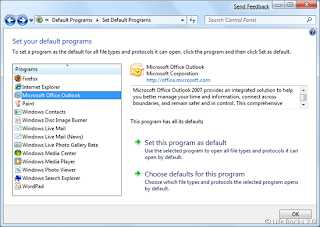
Image: Default Programs On Windows Seven (c) LifeRocks
To set up a program to be default for a particular extension, open control panel and select the option Default programs from the all control panel items or you can also start default programs from start menu search. Read More On How To Use Start Menu Search:

To work around this issue, try the steps as follow to set outlook 2010 as default mail client:
  1. Click Start.
  2. Type "default programs" in the Start Search box.
  3. Click Default Programs under Programs in the search results.
  4. Now click Set your default programs.
  5. Highlight Microsoft Office Outlook or Microsoft Outlook on the left.
  6. Click Set this program as default.
  7. Click OK.
Read More

Thursday, August 19, 2010

bench3

How To Make A StartUp Script In Windows | Using Startup Scripts

DIFFERENT WAYS YOU CAN MAKE A STARTUP SCRIPT IN WINDOWS
The process of making a startup script—a script that is executed automatically when Windows starts—is quite simple. Essentially, you create an ordinary PowerShell Script, batch file, or any other type of script and then take steps to have it executed when Windows starts. There are a few different ways to do this:

Use the Startup folder
Put a shortcut to the script in your Startup folder (usually C:\Users\{username}\AppData\Roaming\Microsoft\Windows\Start Menu\Programs\Startup). 

This is by far the easiest to implement, but also the most fragile, because it’s equally easy to disable. 

If there is more than one user account on a computer, and you want the script to be executed regardless of the currently logged-in user, you can use the “All Users” Startup folder (usually C:\Users\All Users\Microsoft\Windows\Start Menu\Programs\Startup) instead. 

Use the Registry
Open the Registry Editor and expand the branches to HKEY_CURRENT_USER\Software\Microsoft\Windows\CurrentVersion\Run

Select New and then String Value from the Edit menu, and type startup script. Double-click the new Startup Script value, type the name of your script (e.g., c:\scripts\myscript.vbs), and click OK. Although it’s a bit harder to implement, this setup is a little more buried, and thus more difficult for unwitting users to mess up than items placed in the Startup folder.

Many viruses and spyware install themselves in this Registry key precisely because it’s so transparent.for tips on how to remove malware from this key.

Likewise, you can implement this solution for all users rather than just the current user by adding the Registry value to HKEY_LOCAL_MACHINE\Software\Microsoft\Windows\CurrentVersion\Run instead.

Use the Group Policy Editor
This is probably the coolest solution, as it gives you the most control over precisely when the script is run, and it’s the only way to facilitate a shutdown or logoff script as well. Open the Group Policy Editor (gpedit.msc), and expand the branches to Computer Configuration\Windows Settings\Scripts Startup/Shutdown). 
Double-click the Startup entry on the right side, and then click Add. Click Browse to locate a script file, and click OK when you’re done. The script will be run every time you start your computer, but before the logon or Welcome screen appears (and before scripts specified in the Registry or Start menu are ever run).

Likewise, double-click the Shutdown entry to specify a script to be run every time your computer shuts down. Now, there’s a similar setting called Scripts (Logon/Logoff), located in the User Configuration branch. Like everything in the User Configuration branch, these settings apply only to the currently logged-on user (as opposed to all users). If you specify your startup script here (under Logon), instead of under Computer Configuration, the script will run after you log in. And, of course, a script specified under Logoff will be run when you log off, whether or not you actually shut down the computer. 

StartUp Script
A startup script can contain a list of programs that you want to run in a specific order when Windows starts, such as connecting to the Internet and then checking your email. (Neither Explorer’s Startup folder nor the Registry allow you to choose the order in which programs are run.) But there are other, less apparent uses for a startup script, such as for security or remote administration. 

For example, say you’ve discovered malware that has infected some or all of the computers on a network. By writing a script that eliminates the malware by deleting key files or running a removal utility and setting it up as a startup script, you can effectively eliminate it from each computer.
But with scripts, you can take it even further: utilize a single script stored on a single computer that is run, over the network, on all computers. This way, you can make changes to the script once and have those changes propagated to all computers effortlessly. So, if you place the script Startup.vbs on a machine called Server in a folder called C:\scripts (drive C: would be shared as “C”), then each client machine should be configured to automatically execute \\server\c\scripts\startup.vbs (using one of the above mentioned methods). 
The beauty of this is that when you don’t want the script to do anything, you can simply leave it intact yet empty. If you find that you need to, say, make a Registry change or copy a group of files onto each computer, just type the appropriate commands into the script and turn on (or reboot) all the client computers. 

This can turn some administration tasks into very short work.
Read More

Sunday, August 15, 2010

bench3

Using The Run Dialog Box In Windows 7 | Getting More From Run Dialog Box

Open Any Program or Document
Using the Run dialog box is handy for opening favorite applications, because it requires so few keystrokes. But you can also use the Run dialog box to open any file on the computer.
Note: If you cant find the run option in your windows 7, click on "Windows Key + R" and u will get the Windows Run dialog box. 
Also Read:
How To Use Windows Start Menu Search

The trick here is to type in the entire path of the program or document you want. For example, to open the family budget spreadsheet that’s in Haja’s Documents folder, you might type C:\Users\Haja\Documents\familybudget.xls.

Of course, you probably wouldn’t actually have to type all that, since the AutoComplete pop-up menu offers to complete each folder name as you start to type it.
Tip: Typing the path in this way is also useful for opening applications that don’t appear in the Start - All Programs menu. (If a program doesn’t appear there, you must type its entire pathname—or click Browse to hunt for its icon yourself.)
For example: some advanced Windows utilities (including the Registry Editor, an advanced diagnostic program) are accessible only through the command line. You also need to use the Run command to open some older command-line programs that don’t come with a listing in the All Programs menu.

Open a Drive Window
When you click Computer in your Start menu, you see that Windows assigns a letter of the alphabet to each disk drive attached to your machine—the hard drive, the DVD drive, the floppy drive, and so on. The floppy drive is A:, the hard drive is usually C:, and so on. (There hasn’t been a B: drive since the demise of the two-floppy computer.) By typing a drive letter followed by a colon (for example, C:) into the Run box and pressing Enter, you make a window pop open, showing what’s on that drive.

Open a Folder Window
You can also use the Run dialog box to open the window for any folder on your machine. To do so, type a backslash followed by the name of a folder.

You’ll encounter file paths when using several important Windows features. The Run dialog box described in this section is one. 
The address bar at the top of every Explorer window is another, although Microsoft has made addresses easier to read by displaying triangle separators in the address bar instead of slashes. (That is, you now see Users Haja instead of Users\Haja.)
Try not to be confused by the fact that Web addresses use forward slashes (/) instead of backslashes (\)!
Read More

Monday, August 9, 2010

bench3

Optimize Your Computer Using Task Manager.

Is your computer running slow? does your system responding to your actions much slower?  A simple fix is to open up task manager
  • In Windows XP: Ctrl + Alt + Del
  • In Windows Vista and Windows 7: Ctrl + Alt + Del then select task manager
And in all three OS's You can right-click the task bar and choose "Task Manager"
Once the task manager is open navigate to "Applications" the programs you are using are located here, these are user-programs, these are all located in the task bar as well, close any thing you arnt using, by clicking "End Task."

After closing unnecessary programs navigate to the "Processes" tab. Click the "memory" column button until it displays programs in descending order of memory usage.

The top one will always be a browser, game, or editor. That's just the nature of the beast.

How ever messengers take up lots of memory too, even if you arnt signed in, the try i con can kill you, for instance, my AIM is using 11,000K of memory, or 11 megabytes, and im not even signed in, so let's kill that one. You can end processes by clicking "End Process"

Once locating the programs and ending the ones that are causing lots of trouble and making your speeds slow, you will notice that your machine speeds up, the next logical step is to go through you start up registry and deleting them. 

While this works, it's only a temporary fix. The processes will all run again next time you boot up your computer. So it's good only if you need a quick boost in speed.
 
A better idea would be to remove unnecessary items from your Startup menu.

Start -> Run -> msconfig -> Startup
 
Things like iTunes Helper, iPod Helper, Google Update etc. are completely useless, yet are using your memory at all times. 

To know more about how to fix this permanently. Read my previous article...
Read More

Wednesday, June 23, 2010

bench3

Understanding Shell and System Locations In Windows 7

On the right side of the Start menu, you’ll see a list of commands that are vaguely similar to what appeared on the XP and Vista Start menu. However, if you’re coming from XP, many of the names have changed. For example, the old My Documents link has been replaced by one named Documents, My Pictures is now Pictures, My Music is now Music, My Computer is now Computer, and My Network Places is now Network. There are some new items, too, as well as some missing items that were present in XP. 

At the top of the right side of the Start menu, you will see a link that has the same name as your user account. For example, if you’re logged on as Haja, the first link on the right side of the Start menu will also be named Haja. When you click this link, it opens a Windows Explorer window displaying the contents of your user folder, which is found in C:\Users\Your Username, by default. 

This folder contains folders such as My Documents, My Pictures, My Music, and so on. It’s unclear why you would ever need to access this folder, except in rare circumstances. For this reason, you may simply want to remove it from the Start menu and replace it with a more frequently needed command (like Videos).

The Games link debuted in Windows Vista and opens the Games Explorer, which provides access to both games that came with Windows and those you might purchase separately. One feature some people might miss with the new Start menu is the ability to quickly cause the system to shut down, restart, sleep, or hibernate using just the keyboard. 
In Windows XP, you could tap the Windows key, press U, and then U for shut down, R for restart, S for sleep, or H for hibernate (the latter of which was a hidden option). 
Because of the Start Menu Search feature in the Windows 7 Start menu, these shortcuts no longer work. However, you can still perform these actions with the keyboard in Windows 7. 

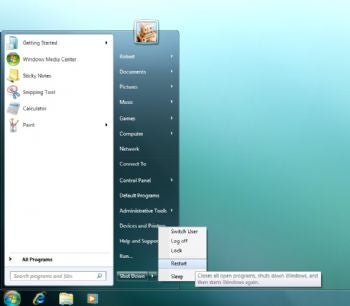
Now, however, you have to tap the Windows key and then press the Right Arrow key three times to display the submenu shown in Figure below, which provides links to the aforementioned options as well as Switch User, Log Off, Lock, and, if you have a notebook computer with a docking station, Undock. The default option— on the button, not the menu—is shut down.
In Windows XP and Vista, some of these links pointed to special shell folders, special physical folder locations that were reserved for specific purposes. In Windows 7, these links no longer point to special shell folders; they point instead to Libraries, a new Windows 7 feature. From a usage standpoint, Windows 7 Libraries work similarly to special shell folders from previous Windows versions. 

Options related to shutting down, sleeping, and locking the PC are available via this mini pop-up menu. 
Notice that this menu is, alas, a pop-up menu similar to the All Programs menu in Windows XP. Why Microsoft killed pop-up menus in one place but added them in another is a mystery.
Read More

Thursday, May 20, 2010

bench3

MS Office Installs Itself Every Time It Opens A File | Fix Office Reconfigures Itself Every Time

This problem can occur due to a wrong registry value. If you have tried any other solution from other websites, and if that works for you that is fine. If none has helped you, try this. 

Before editing any registry values, try to backup your registry.
1: Uninstall Your Office System.
2: And Go To Regedit (Start - Run - RegEdit) Windows vista and windows 7 users click here to know how to use your run prompt.
3. And go to HKEY_CURRENT_USER\Software\Microsoft\Office\
4. Delete The Entry 12.0 for office 2007 ( or what ever 11.0 for Office 2003 etc..depends upon your office version.)
5. Restart your machine.
6. And now install your microsoft office software from the begining.

Hope, this will solve your problem now.
Read More

Monday, August 3, 2009

bench3

Activate And De-Activate Drag And Drop Items In Start Menu | Windows XP - Windows 7

Windows allows you to drag and drop items on the Start menu. For example, let's say you are working on a document. You want that document to appear on the Start menu so you can easily access it while you are working on it.

No problem, just drag and drop the document on the Start button. This creates a 'shortcut' to your document-it does not actually move the document to the Start menu, but just creates a shortcut to it. 

If you can't drag and drop items, then you simply need to turn on the drag and drop feature.

To turn on dragging and dropping on the Start menu, follow these steps:
  1. Right-click the Start button at the lower-left corner of your screen and click Properties.
  2. Click the Customize button.
  3. On the Customize Start Menu window, click the Advanced tab.
  4. In the Start menu items portion of the window, locate the check box called Enable Dragging and Dropping. Click the check box so that a check appears. Click OK and OK again. You can now drag and drop items on your Start Menu.
Deactivate Drag And Drop:
If you want to prevent users from using the drag-and-drop method to reorder or remove items on the Start menu. Also, to remove context menus from the Start menu.

If you disable this setting or do not configure it, users can remove or reorder Start menu items by dragging and dropping the item. They can display context menus by right-clicking a Start menu item.

This setting does not prevent users from using other methods of customizing the Start menu or performing the tasks available from the context menus.   

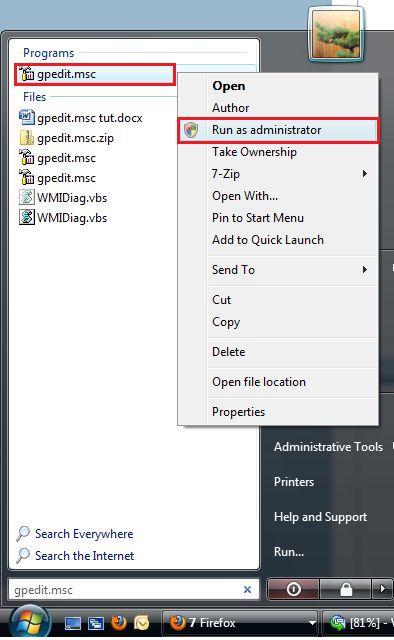
Note: By now you might be familiar on activating drag and drop in windows XP, and to activate you can try the same way as said about for windows XP. This guide shows you how to make changes to Windows Vista / Windows 7 using Group Policy. Also Note Group Policy is not available in Home versions of Windows.
  1. Type gpedit.msc in the Start menu’s search box and then press Enter.
  2. Navigate to User Configuration, Administrative Templates, and then select Start Menu and Taskbar in the left column of the Group Policy editor (refer screen shot).
  • Double-click Remove drag-and-drop and context menus on the Start Menu on the Advanced menu in the Settings section of the Group Policy editor.
  • Select Enable and then click OK to save the changes. 
Read More

Thursday, July 9, 2009

bench3

Customizing Your Windows Start Menu

The Start Menu and Start Button are user interface elements in the Microsoft Windows line of operating systems, which serve as the central launching point for application and tasks.
On Windows operating systems before Windows Vista, and also in Windows Vista's "Windows Classic" theme, the Start Button consists of the word "Start" and the Windows Logo. In Windows Vista's new themes, the word "Start" has been replaced by a blue Windows "orb" logo (as shown in figure above).

The Start menu is the main gateway to your computer's programs, folders, and settings. It's called a menu because it provides a list of choices, just as a restaurant menu does. And as "Start" implies, it's often the place that you'll go to start or open things.
Use the Start menu to do these common activities:
  • Start programs
  • Open commonly used folders
  • Search for files, folders, and programs
  • Adjust computer settings
  • Get help with the Windows operating system
  • Turn off the computer
  • Log off from Windows or switch to a different user account 
The Windows Start Menu is notoriously bloated. There are a couple of ways you can customize your start menu to restore order. The first is to customize the right-hand panel and the second is to organize the programs folder.
Customizing the Right-hand Panel
  • Right click on the Windows button and select Properties
  • Click the Customize… button
  • Here you can change what shows up in the right section of the start menu. If you don‟t use your Music folder, then why have it linked there?
Customizing the Programs List
After installing a few programs, your start menu can get cluttered. To reduce the number of folders in the left part of the menu, consider using folders like „Media‟, „Internet‟ etc. To customize your Start Menu, do the following.
  1. Click the Start Menu button
  2. Click on Programs
  3. Right click on a folder and select Explore All Users/Explore
  4. Once in the windows explorer window, you can rename folders and put links together.
I usually delete the shortcuts to readme files, help files, and uninstall links as these can all be accessed from other places, and I rarely use them.'

Related Link:
Read More