Showing posts with label Power. Show all posts

Sunday, April 15, 2012

bench3

Sleep Mode Is Better Than Hibernate And Standby In Windows

In the olden days, Windows offered a command called Standby. This special state of PC  consciousness reduced the amount of electricity the computer used, putting it in suspended animation until you used the mouse or keyboard to begin working again. Whatever programs or documents you were working on remained in memory.
When using a laptop on battery power, Standby was a real boon. When the flight attendant handed over your microwaved chicken teriyaki, you could take a break without closing all your programs or shutting down the computer.

Unfortunately, there were two big problems with Standby, especially for laptops. 
  • First, the PC still drew a trickle of power this way. If you didn’t use your laptop for a few days, the battery would silently go dead—and everything you had open and unsaved would be lost forever. 
  • Second, drivers or programs sometimes interfered with Standby, so your laptop remained on even though it was closed inside your carrying case. Your plane would land on the opposite coast, you’d pull out the laptop for the big meeting, and you’d discover that (a) the thing was roasting hot, and (b) the battery was dead.
The command is now called Sleep, and it doesn’t present those problems anymore. 
  • First, drivers and applications are no longer allowed to interrupt the Sleep process.  No more Hot Laptop Syndrome.
  • Second, the instant you put the computer to sleep, Windows quietly transfers a copy of everything in memory into an invisible file on the hard drive. But it still keeps everything alive in memory—the battery provides a tiny trickle of power—in case you return to the laptop (or desktop) and want to dive back into work. 
If you do return soon, the next startup is lightning-fast. Everything reappears on the screen faster than you can say, “Redmond, Washington.”

If you don’t return shortly, then Windows eventually cuts power, abandoning what it had memorized in RAM. (You control when this happens using the advanced power plan settings) Now your computer is using no power at all; it’s in hibernate mode.

Fortunately, Windows still has the hard drive copy of your work environment. So now when you tap a key to wake the computer, you may have to wait 30 seconds or so—not as fast as 2 seconds, but certainly better than the 5 minutes it would take to start up, reopen all your programs, reposition your document windows, and so on.
The bottom line: When you’re done working for the moment—or for the day—put your computer to Sleep instead of shutting it down. You save power, you save time, and you risk no data loss.
You can send a laptop to Sleep just by closing the lid. On any kind of computer, you can trigger Sleep by choosing Start->Sleep or by pushing the PC’s power button, if you’ve set it up that way.
Read More

Wednesday, October 26, 2011

bench3

It Is Not Recommended To Turn Off the Computer | Using Windows Power Management At Its Best

In this article we will see why it is not recommended to turn off your PC. And also lets see various power management options. With PCs designed to work with Windows power management, including good BIOS and device implementations, users can realize great power savings and take advantage of new PC usage scenarios that weren't previously possible.

We recommend you do not turn off the computer when you have finished using it. Windows likes to perform housekeeping tasks when you aren’t using the computer, so leaving it on, even when you’re not working, is a good idea. You can schedule programs to run at specified times for example, you can schedule Windows to collect your e-mail at 7:00 every morning.

Many computers power down the monitor, hard disk, and fan after a set time of inactivity. The computer itself, however, is still running. If your screen doesn’t power off automatically, you should turn off your monitor when you aren’t using the computer.

Many computer monitors (except for LCD monitors) use the lion’s share of the electricity consumed by a computer.

Powering off unused computers at night and on weekends can save up to $60 in energy costs per machine per year! But the goals of Green IT often conflict with the needs of IT administrators to deploy critical updates.

But a good power management can help you get to a conclusion on this.

Choosing Lock Button Modes

Since Windows Vista, Windows Operating System includes Lock buttons. Lock buttons display on the Start menu and provide options for putting Windows or your computer in a different operating mode. For example, when you are ready to shut down your computer, you can use the Shut Down mode.

It Is Not Recommended To Turn Off the Computer  Using Windows Power Management At Its Best

The following list describes each mode Windows provides:

Switch User: Allows you to change from the current user to another user without shutting down the computer.

Log Off: Allows you to log off from Windows and any network connections you have established.

Lock: Allows you to lock your computer so users cannot access it, but it allows your programs to continue running. This is handy if you are downloading a large file and you need to walk away from your computer while it continues to download.

Restart: Shuts down Windows, and then reloads it (useful if your computer starts acting funny).

Sleep: Puts the computer into a sleep mode, which shuts down the hard drive and turns off the monitor to conserve power consumption. Programs remain open and your documents are automatically saved. When you awaken your computer, these devices turn back on.

Hibernate: Puts your computer into a power-saving mode that is similar to the Sleep mode. Hibernate is available only if you use the advanced power settings in Windows.

Away: Makes it appear that your computer is shut down, but some tasks like burning CDs and recording television programs still run. If you move the mouse or type on the keyboard, nothing happens.

Shut Down: Shuts down Windows. Windows displays a message when you can safely turn off the computer. Don’t turn off the computer until you see this message. Computers with advanced power management shut off automatically.

Setting Windows to Shut Down by Itself
Windows includes OnNow, technology that powers down the computer when nothing is happening and powers it back up when the computer is needed again. To use OnNow, choose Start | Control Panel, click System And Maintenance, and then run the Power Options program. To Use this feature, Your PC should have the OnNow-capable hardware.  With PCs designed to work with Windows power management, including good BIOS and device implementations, users can realize great power savings and take advantage of new PC usage scenarios that weren't previously possible.

The OnNow Power-Managed PC

Most users prefer to leave PCs turned off when not in use to reduce noise and electricity use. However, for new uses at home and in business, the PC must be instantly available to answer the phone, display e-mail, or browse the Web, but be silent and use minimal energy when not in use.

To achieve this, the OnNow-capable hardware, operating system, and applications must work together in these ways:

  • The PC appears to be off, but is ready for use immediately when the user presses the On button and return to its "off but ready" state automatically when the system is idle.
  • Software adjusts its behaviour when the PCs power state changes for example, software does not inadvertently keep the PC busy with unnecessary background tasks.
  • All devices participate in power management. Any device can have its power state changed by the system.
Read More

Monday, September 12, 2011

bench3

Windows 8 Boots Faster Than Windows 7 | Advantages Of New Fast Boot Option In Windows 8

When it comes to talking about fundamentals we want to start with boot time – no feature gets talked about and measured more. Windows 8 is designed in a way that we do not need to boot all that often. And also Windows 8 is keen on reducing the number of required restarts due to patching running code. When you boot Windows 8 it will be as fast as possible.

How Could It Be Possible To Boot Windows 8 Faster Than Windows 7: Few operations in Windows 8 are as scrutinized, measured, and picked apart as boot. This is understandable boot times represent an effective proxy for overall system performance and we all know the boot experience is an incredibly important thing to get right for Windows 8 Users.

We prefer to shut down because we want to have our PC completely “off” so that it uses no power – either to preserve battery life or to reduce their energy use. Hibernate is also a good option for this since it similarly has no power draw, and many people really like it.

However, it’s clearly not for everyone, since many of us want to turn their PCs on and have it be a “fresh start” rather than running all of the stuff from their previous session.

Sleep/resume is the best option for fast on/off transitions on today’s PCs, but it still consumes some power in order to preserve the contents of RAM, which means battery drain – even if it’s only a little bit on a well optimized system. All of this is happening with the backdrop of how we all use our mobile phones today, which is almost never restarting them, and always using what feels closest to a sleep-like state.

Boot Windows 8 Faster

Then, How will be the Windows 8 designed to meet all of these desires on today’s PCs without requiring some special new hardware.

Here are some advantages on Windows 8 in this regard:

  • Effectively zero watt power draw when off
  • A fresh session after boot
  • Very fast times between pressing the power button and being able to use the PC.

Of course, In Windows 7 there were many improvements to the boot path, including parallel initialization of device drivers, and trigger-start services, but it was clear that Windows 8 have to get even more creative (and less incremental) to get boot performance anywhere close to fast enough to meet all of these needs.

One Windows 8 solution is a new fast start-up mode which is a hybrid of traditional cold boot and resuming from hibernate.

In a traditional shutdown, we close all of the user sessions, and in the kernel session we close services and devices to prepare for a complete shutdown.

Now here’s the key difference for Windows 8:

Windows 7 actually closes the user sessions, but instead of closing the kernel session, Windows 8  hibernate it. Compared to a full hibernate, which includes a lot of memory pages in use by apps, session 0 hibernation data is much smaller, which takes substantially less time to write to disk.

If you’re not familiar with hibernation, Windows 8 effectively saving the system state and memory contents to a file on disk (hiberfil.sys) and then reading that back in on resume and restoring contents back to memory.

Using this technique with boot gives a significant advantage for boot times, since reading the hiberfile in and reinitializing drivers is much faster on most systems (30-70% faster on most systems).

Windows 8 Boots Faster Than Windows 7  Advantages Of New Fast Boot Option In Windows 8

Figure: Bar chart comparing Windows 8 fast startup times to Windows 7 cold boot times on 30 different PC configurations. The Windows 8 startup times are all between 15 and 33 seconds, while the Windows 7 cold boot times are between 25 and 72 seconds.

It’s faster because resuming the hibernated system session is comparatively less work than doing a full system initialization, but it’s also faster because Windows 8 have added a new multi-phase resume capability, which is able to use all of the cores in a multi-core system in parallel, to split the work of reading from the hiberfile and decompressing the contents.

For those of you who prefer hibernating, this also results in faster resumes from hibernate as well.

How Hibernation Works With Windows 8

It’s probably worth mentioning how Windows 8 treat the hiberfile. If you read this and immediately try dir /s /ah hiberfile.sys  you will find that it’s a pretty big file on disk. The hiberfile is sized by default at 75% of physical RAM.

The file is essentially a reservation for hibernation data that will be written out as the system is dropping into hibernation. Typically much less space is actually used, and in the case of Windows 8 fast startup usage, it’s typically ~10-15% of physical RAM but varies based on drivers, services, and other factors.

Windows 8 also treats the hiberfile slightly differently than other files on disk, for example, the Volume Snapshot service ignores it (a small performance benefit.) You can disable hibernation and reclaim this space by running  powercfg /hibernate off from an elevated command prompt.

Warning! But be aware that if you turn off hibernating in Windows 8, it will disable hibernation completely, including some nice capabilities like fast startup as well as hybrid sleep, which allows desktop systems to do both a sleep and hibernate simultaneously so if a power loss occurs you can still resume from the hibernated state.

You can also run powercfg /hibernate /size and specify a value between 0 and 100 for the percentage of physical RAM to reserve for the hiberfile – but be careful! Specifying too small a size can cause hibernation to fail. In general, I recommend leaving it enabled at the default value unless you’re working on a system with extremely limited disk space.

Those of you who like to cold boot in order to “freshen up” drivers and devices will be glad to know that is still effective in (Windows 8) this new mode, even if not an identical process to a cold boot.

This new fast startup mode will yield benefits on almost all systems, whether you have a spinning HDD or a solid state drive (SSD), but for newer systems with fast SSDs it is downright amazing.

In Reality, Windows 8 boots faster than smart phones, say our Windows Phone 7.

Check out the following video from Microsoft Windows 8 Team to see for yourself: Download this video to view it in your favorite media player: High quality MP4 | Lower quality MP4

One thing you’ll notice in the video was how fast the POST handoff to Windows occurred. Systems that are built using Unified Extensible Firmware Interface (UEFI) are more likely to achieve very fast pre-boot times when compared to those with traditional BIOS. This isn’t because UEFI is inherently faster, but because UEFI writers starting from scratch are more able to optimize their implementation rather than building upon a BIOS implementation that may be many years old. The good news is that most system and motherboard manufacturers have begun to implement UEFI, so these kinds of fast startup times will be more prevalent for new systems.

How To Shutdown Windows 8 Fully:

Of course, there are times where you may want to perform a complete shutdown – for example, if you’re opening the system to add or change some hardware. Windows 8 have an option in the UI to revert back to the Windows 7 shutdown/cold boot behavior, or since that’s likely a fairly infrequent thing, you can use the new /full switch on shutdown.exe. From a cmd prompt, run: shutdown /s /full / t 0 to invoke an immediate full shutdown. Also, choosing Restart from the UI will do a full shutdown, followed by a cold boot.

Fast booting and resuming states is something every PC users expects. Now that computers are coming with improved components. This now means that we can put our machines in sleep-mode or hibernation without even thinking, it will be second-nature to users when using Windows 8.

In regards to their 'start screen' I pray and hope that they allow us to add a background image and change the opacity level of tiles. I have done so many mockups in Photoshop and having a background image with translucent tiles is much more visually appealing, even an opacity level of 90% works well. Trust me when I say that nobody is going to want to revert from Aero glass to flat boring tiles, changing the opacity adds perceived depth.

However, In the past, the boot performance of Windows PCs have degraded over time as applications are installed/removed and the registry is mucked up. Is this new boot method still vulnerable to this type of degradation? Will it still boot just as fast 5 years down the road? Have you done any lab simulations regarding this scenario? We need to wait to know how it works.

Read More

Monday, August 8, 2011

bench3

Computer Shuts Down Instead Of Sleeping | Fix

Some times When we attempt to put computer on "sleep" it appears to shut down. i.e. you may have to start the computer from the power button rather than click the mouse computer will not sleep.

But, before you try to fix this issue, you need to check your keyboard whether the keyboard or mouse has an option to wake the computer up when its in sleep mode.

To fix your issue, you need to open a command prompt with administration rights and issue a command.

1) Search for "CMD"

2) Right click "CMD" and "Run as Administrator". If you were asked to enter the administration password, give the required.

3) In the command line, type in "powercfg.exe /hibernate off"

Sleep should work properly now, instead of shutting off your PC. Watch the below screen shot for any help.

Fix Computer Shuts Down Instead Of Sleeping 1

Fix Computer Shuts Down Instead Of Sleeping 2

If the above solution did not work for you, you can also try the below fix.

  • 1. Open the Control Panel (Standard View).
  • 2. Click on System and Maintenance and then System.
  • 3. Under Tasks, click on Device Manager.
  • 4. Provide administrative credentials when prompted.
  • 5. Click on the + sign beside Keyboard
  • 6. Right click on selected device and then go to properties
  • 7. Go to Power Manager tab
  • 8. There should be a check on this device can wake the computer

The ability to recover from sleep mode by pressing a key on the keyboard or by moving the mouse on a computer that supports ACPI is dependent on the computer's motherboard. This ability is disabled in older Intel motherboards, and the only way to wake the computer from sleep mode is to press the Power button.

With most newer motherboards, you can wake the computer by pressing the Power button, by pressing a key on the keyboard, or by moving the mouse.

ACPI support is necessary to take full advantage of the power management and Plug and Play features in Windows. If you are not sure whether your computer is ACPI-compliant, please see the printed documentation for your computer or motherboard, or contact the manufacturer of your computer or motherboard.

For more information about hardware and software vendor contact information, visit the following Microsoft Web site:

http://support.microsoft.com/gp/vendors

Read More

Friday, July 15, 2011

bench3

Fix Deleted Power Icon On Windows 7 Taskbar

This article will help you troubleshoot in case if you have accidently deleted or by some way you lost the little power icon on the Windows 7 Taskbar near the system clock.

If the battery icon does not appear in the left corner and originally by design, Windows 7 will have its power icon (Charging / or on battery)will be there on the right bottom of the screen. How to fix?

Possible, the icon wont be deleted. In case if it is hidden you can find it this way.

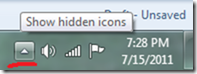
  • To find the settings click the small triangle to the left of the icons in the task bar (bottom left of the screen). 

Fix Deleted Power Icon On Windows 7 Taskbar 1

This might display the missing icon in the menu if it does then you want to make it permanently visible. 

If it doesn't you still need to follow these instructions.

  • Right click the Task bar (bar with start button along bottom of screen).
  • Choose properties.
  • Click the Customize button in the Notification area section of the Taskbar tab.

If you icon was in the fly out menu from earlier it will be listed hare.  Change the setting to Show Icon and notifications.

  • If your Power icon is not visible in this list click the link "Turn system icons On or Off".

Fix Deleted Power Icon On Windows 7 Taskbar2

  • Power should be listed here.  Change the setting to On.
  • Click the back button (top left).  Check the settings for what will display.
  • When finished click OK.

If you still cant get your icon back…

Well, May be, you had done any changes to the computer prior to the issue. If you remember any thing, try to undo those changes, if you are not sure, try system restore to the earlier version. please check the link Using System Recovery Options In Windows 7 to know how to use System restore in Windows 7

I would recommend you to perform System Restore to the point where it was working fine and check if it helps. View the following link to perform System Restore. Using System Recovery Options In Windows 7

Read More

Friday, April 29, 2011

bench3

Windows 7 Thrashes Hard Disk When Waking From Sleep

We noticed that on Sony VAIO Z notebook that when we resume for sleep, the system is unresponsive for about 30 seconds and during that period, the Hard Drive LED is constantly on. When the HS LED goes off, the system become usable. We have tried restarting or making sure no programs are launched when putting the computer to sleep but it doesn't help. 

Strangely, this doesn't happen when 7 is first installed. Happens after a couple of days. Even reformatted and same thing.

Solution:
  • We probably talk for hibernate, but not for sleep.
  • Hibernate require all RAM content to be saved on HDD before system to goes to be powered off, and to be back loaded from HDD on wake up.
  • As many RAM you have as long it takes to save and load RAM content
  • When system use hibernate it is completely off, if sleep is used, system still drain power to supply RAM
  • It is possible and some problem with HDD to cause this behavior, so if you are sure you use sleep, but not hibernate, check hdd SMART status and HDD surface for bad sectors
 Most likely is that our power options (BTW, does this occur on battery only, on AC only, or both) are set to put the system into Hibernation after XX minutes (this is, BTW, A Good Thing, as it conserves power on battery, by dropping the system from S3 (standby, RAM powered) to S4 (hibernation, RAM not powered.)
Read More