Showing posts with label Login. Show all posts

Wednesday, October 5, 2011

bench3

How To Setup PIN To Logon To Windows 8

Plenty of new features have been added to Windows 8 Operating System. And to user logon and User Authentication, we have seen how to logon into Windows 8 using Picture or using a touch (Steps To Setup Picture Password in Windows 8) which would be useful if you are using touch enabled devices.

And in this article, we will see one more new feature that have been added to Windows 8 User Authentication, the PIN For Logging Into Windows 8. The PIN logon is similar to PIN in credit and debit cards of banks.

Step-by-Step Instructions To Set up a PIN to login to Windows 8

The PIN logon in Windows 8 is similar to the PIN that we use in credit cards or debit cards of banks at the ATM. Like the Picture password, the PIN is another excellent feature introduced in Windows 8.

PIN allows you to setup Windows 8 login password at the most four digits. This may not be as secure as a picture password but is a faster method to logon to Windows 8. This method would be very useful for touch enabled devices.

Open the Control Panel and select Users

How To Setup PIN To Logon In Windows 8

Under your account details (as in the above figure), you can see an option "PIN Logon". Now click on Create a PIN button below that.

Now you need to enter your current logon password and click on OK button. In the next step you need to set up your PIN for logon

How To Setup PIN To Logon In Windows 8 2

In the next dialog, you have to enter the four digit PIN and also re type the PIN to confirm it. Click on "Finish" at the end

How To Setup PIN To Logon In Windows 8 3

That is all! your PIN is not set up for PIN logon to Windows 8 and you can start using it next time to login to Windows 8 account.

Also, in our earlier post we have seen how to logon into Windows 8 using Picture or using a touch (Steps To Setup Picture Password in Windows 8). There are still quite a lot of new features added in Windows 8 and stay tuned with bench3 to know more.
Read More

Tuesday, September 20, 2011

bench3

Make Windows 8 PC Automatically Logon to Your Use Account

Here are the step-by-step instruction to make your Windows 8 PC to log in to your user profile automatically.

Every one knows that the Windows 8 has a brand new Interface the Metro. And thats the first screen you will be seeing in your Windows 8 PC by default.

Note: If you are using VMware 8 workstation to try Windows 8 Virtually, It is important that you install VMware Tools. It is must as it fixes driver issues including Video and also it is essential to Install various third party Apps in your Windows 8.

If you are the only user who is using the new Windows 8 PC, you can then use the Automatic Logon feature which is present in the Windows 8 OS to automatically login to your PC.

Follow the below mentioned steps to automatically login to your Windows 8 PC.

  • First, Click on the Windows button to get the Metro screen.
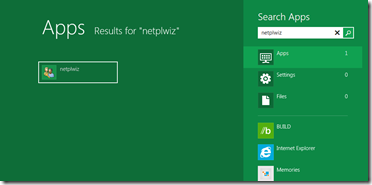
  • In the Metro screen, type "netplwiz" and hit enter button.

Make Windows 8 PC Automatically Logon to Your Use Account 1

  • When you press the enter button (or you can also click on the Apps NETPLWIZ), a User Accounts screen will be displayed.

Make Windows 8 PC Automatically Logon to Your Use Account 2

  • In the page, you can find the number of users who can login to the system.
  • Select the users who want to login automatically to the PC.
  • Uncheck the box which has "Users must enter username and password to use this computer". And then Click Ok.

Make Windows 8 PC Automatically Logon to Your Use Account 3

  • Once you click on OK, you will be asked to enter your password twice to confirm your password.

Make Windows 8 PC Automatically Logon to Your Use Account 4

  • After entering the password, click on "Ok".
  • Now, you can Automatically login to your system, without entering password each time you log on to your Windows 8 PC.

To see the Automatic login feature, Restart your system and check if it works. Please leave your comment if you have any problem in these settings.

Read More

Monday, July 18, 2011

bench3

User Profile Service Failed To Logon | User profile Cannot Be Loaded

I upgraded to Windows 7 last night and now I can't log in. When I put in my password, an error comes up that says "The user profile service failed the logon. User profile cannot be loaded". I am the only account on my computer. I saved all of my files last night, so can I just do a system restore? And how do I do that on Windows 7? How do I fix this?

Solution:

If you can't get to any accounts at all, then start at step...

  • Restart your computer and hit F8 multiples times until you see a menu-like screen, if you see the Windows splash screen then repeat this step
  • Highlight and hit enter on Safe Mode with Command Prompt. Try logging in there. If it still doesn't work, then go to step17
  • If you are able to login, once a command prompt pops up, type: net user administrator password /active:yes (you can specify whatever password you want for the administrator account.)
  • If you get a message saying "The command completed successfully", then restart your computer by typing: shutdown -r
  • Boot up again pressing F8, but this time choose just Safe Mode.
  • You will be able to login as Administrator with the password you set in Step 3
  • Hit (windows logo)+R
  • Type regedit
  • Once the registry editor opens up, look for HKEY_LOCAL_MACHINE\SOFTWARE\Microsoft\Windows NT\CurrentVersion\ProfileList
  • In the left pane, find the one that starts with S-1-5..... and ends with .BAK; if you don't find one, skip to step 15
  • Right click it and click Rename, then change the .BAK to .BK
  • Right click the one with the same numbering but without the .BAK and add .BAK add the end
  • Right click the one that you renamed to .BK and clickRename, delete the .BK
  • Eventually, you have switched the .BAK from the end of the second entry to the first. That should probably fix your problem.
  • If you didn't find a .BAK then try this: Open Windows Explorer to C:\Users\Default\AppData\Local\Application Data
  • If you find another Application Data below the one you're on, then delete it. That should probably also fix your problem.
  • 17. If you can't login in Safe Mode, then reboot and hit F8 until you see the menu again, then hit enter highlightingRepair Your Computer
  • Wait until all Windows Files finish loading, then hitNext when it asks keyboard language.
  • Try logging in here also, choose your user from the dropdown menu, and type the password, then jump to step 23
  • If that still doesn't work, then if you have your Windows Installation CD still, put it in and restart your computer.
  • Hit F12 until you see a menu of boot options, choose Boot from CD
  • Choose keyboard language then hit next. Find Repair Your Computer from a little below the center left.
  • Choose Open Command Prompt and type: net user administrator password /active:yes (here again you can specify a password)
  • Close the command prompt and click Restart and jump to step 5

To disable the administrator account, type this in an elevated command prompt: net user administrator /active:no

There seems to be a forum bug where some spaces disappear. Please note that there is a space between "administrator" and "password".

Try taking away all bold formatting to see if that will fix the space problem.

Read More

Tuesday, April 26, 2011

bench3

Enable Automatic Logon In Windows 7

This article explains you how to turn off the logon screen in Windows 7. If you doesn't want a logon screen, or if you don’t want to enter your password each time you start your system, lets see how to disable it. In the other way, how to enable Automatic logon in Windows 7

For windows vista users read this info http://windows.microsoft.com/en-US/windows-vista/Turn-on-automatic-logon and select My computer is on a workgroup

  • Press (Windows Key With R) and type control userpasswords2, and then press ENTER. If you are prompted for an administrator password or confirmation, type the password or provide confirmation.

    image

    Please note, Windows Vista users can use start menu search box, instead of run box.

  • Clear the Users must enter a user name and password to use this computer check box, and then click Apply.

  • In the Automatically Log On dialog box, type your password, and then click OK.

  • In the User Accounts dialog box, click OK.

    After you restart your computer, you will be able to log on automatically.

Read More
bench3

Using AutoLogon ByPass Key For Windows 7

Windows 2000 and XP Users  might have run auto logons and bypassing key for administrators. But with windows 7 the bypass key seems to be missing. In windows 2000 and XP it was the shift key at boot up. And in Windows Vista and Windows 7 none seem to work.

To Perform autologon in windows 7, go to run and write "control userpasswords2" Then select the user and write the password you wish to autologon, press ok and from the next logon Windows 7 will make autologon.

I can not find the ability to bypass startup items (and autologon) was removed from Windows Vista and Windows 7. Too bad the Shift key does not override autologon so it's either enable or disable. Windows 7 broke this. Windows 7 not only ignores the SHIFT key on boot, Windows 7 also ignores the following registry entry:

HKEY_LOCAL_MACHINE\SOFTWARE\Microsoft\Windows NT\CurrentVersion\Winlogon

DWORD: "IgnoreShiftOverride"="0"

So far I haven't found an easy way to do it. Here is what I do. It's not elegant or simple, but it works for me:

  • Logon to the autologon account.
  • run c:\windows\regedit as a member of administrator (right click run as administrator) or if that profile is already administrator simply run regedit.
  • go to HKLM\\SOFTWARE\Microsoft\Windows NT\CurrentVersion\Winlogon.
  • set AutoAdminLogon=0
  • log off.
  • log on as your choice administrator user.
  • When you're done set AutoAdminLogon=1

So, we are out of luck with this feature unless we go and get a third party utility such as LogonExpert. or  Just use the sysinternals autologin tool off microsoft website.

http://technet.microsoft.com/en-us/sysinternals/bb963905.aspx

Add the following strings to the registry

Read More

Friday, April 8, 2011

bench3

Display Your Own Logo In Windows 7 Login Screen

If you are an corporate user it is obvious that you wish to have your company logo when windows 7 asks for your login details. And also, when you have issues with people stealing computers.

However thieves sometimes do not steal computers with their company logo on the locked screen/logon screen. It might be because of the branding which seem more professional and they maybe are afraid of being tracked by our company. But remember, computers stolen are always stolen, as when a new operating system is installed, all the user defined settings and logo will be out.

Anyway, take the following steps to replace Logon UI logo.

  • Click Start, type Regedit and press Enter
  • Navigate to

HKLM\Software\Microsoft\Windows\CurrentVersion\Authentication\LogonUI\Background

  • Change value of OEMBackground to 1.
  • Now navigate to %windir%\system32\oobe, create folder “info”, double click it and create another new folder “backgrounds”
  • Now place your desired logon file into %windir%\system32\oobe\info\backgrounds
  • Rename the file to backgroundDefault.jpg. (Please NOTE: Images must be less than 256kb in size).

That’s it. Thank you.

Read More