Showing posts with label Icon. Show all posts

Monday, November 21, 2011

bench3

Display My Computer Icon On Windows 8 Desktop

This article gives you a step-by-step instructions on how to make “My Computer” Icon Visible on Windows 8 Desktop.

In Windows XP, Windows Vista And on Windows 7, we will see at least the Recycle Bin icon in the desktop after a fresh install. Also it was easy to add My Computer icon on the desktop. Normally We use “Start –>  My Computer -> Show on Desktop” method to bring the 'My Computer' icon on to the desktop. But in Windows 8 it is different as by default My Computer Icon will not be available on the Desktop nor you cant simply right click on it and make it available on the Desktop. But, here is how to show My Computer in Desktop in Windows 8


Display My Computer Icon On Windows 8 Desktop

Step-By-Step Instructions To Display My Computer Icon On Windows 8 Desktop:

  • Click on the Windows 8 Desktop tile in Metro User Interface. (This brings the normal old desktop.)
  • Right click anywhere on the desktop and select Personalize. (Now you will see the personalization screen.
  • In personalization screen click on 'Change desktop icons'.( Here you can select the icons you want to display in Windows 8 desktop.)
  • So you can select 'My Computer' icon by ticking the check box next to it.
  • Other icons like Control Panel and Network icons can also be displayed by using his method.
  • Now click on 'Apply'. Now you should be able to see the 'My Computer' icon on your desktop

Windows 8 has lots of new features and still many news features are getting added to it. Still, its difficult to tweak common settings like what we have seen now. Stay Tuned For More Updates. If you are interested, like and share our Facebook Page.

Read More

Wednesday, November 16, 2011

bench3

Find And Clean Up Useless Icons And Programs From Your PC

If you haven’t yet taken control and zapped those obnoxious programs that your PC vendor probably stuck on your machine, now is the time to do it. If you bought a new computer with Windows 7 preinstalled, the manufacturer probably sold some desktop real estate to a software company or an Internet service provider (ISP). The AOLs and Norton's of the world compensate the Sony’s, Dells and HPs for services, and space, rendered.

The last thing you need is yet another come-on to sign up for AOL or an antivirus  program that begs you for money every week.

  • To get rid of most icons, simply right-click them and choose Delete.
  • To get rid of the icons’ associated programs, choose Start➪Control Panel➪Uninstall a Program (which appears in the Programs section).

When the Uninstall or Change a Program dialog box opens, double-click a program to remove it.

Unfortunately, many scummy programs don’t play by the rules: Either they don’t have uninstallers or the uninstaller that appears in the Change a Program dialog box doesn’t get rid of the program entirely. I won’t mention Norton Internet Security by name. To get rid of the scummy stuff, look in a program from Jason York. It’s at pcdecrapifier.com/download

Read More

Saturday, October 29, 2011

bench3

Understanding System Menu | Icon In The Upper Left Corner

The System Menu button is a tiny icon in the upper-left corner of each window. The icon shows which program you are running. When you click the icon, you see the System  menu:

You can also display the System menu by pressing alt-spacebar or by right-clicking the title bar of the window.

The system menu (also called as the window menu or control menu)  is a popup menu in Microsoft Windows, accessible by left-clicking on the upper-left icon of most windows, or by pressing the Alt and Space keys. This menu provides the user with the ability to perform some common tasks on the window, some in atypical ways.

For example, normally a user would move a window by dragging the title bar of the window - but with the option in the system menu the user gets a different cursor and procedure to move the window with.

Understanding System Menu

The commands on the System menu do the following:

  • Restore Resizes the window to its previous size, the same as the Restore button.
  • Move Enables you to move the window around on your screen by using the cursor (arrow) keys. This command does the same thing as dragging the window’s title bar with the mouse. Press ENTER to finish moving the window.
  • Size Enables you to change the size of the window by using the cursor keys. This command does the same thing as dragging the window borders with the mouse.
  • Minimize Minimizes the window, shrinking it to a small icon, the same as the Minimize button.
  • Maximize Maximizes the window to cover the whole screen, the same as the Maximize button.
  • Close Closes the window, the same as the Close button.

Some applications also add their own commands to the System menu. Some applications customize the system menu, typically through the GetSystemMenu WinAPI function. Cmd.exe is an example of this and offers the user an ability to change its preferences through its system menu (other a222pplications typically offer the user to change their preferences through the normal menu below their window's title bar).

Read More

Sunday, October 2, 2011

bench3

Create Shutdown Tile on Windows 8 | How to Shutdown Windows 8 from Desktop or Metro Interface

If you are using Windows 8 either as a virtual Machine or as a normal Operating System, you will miss the Shutdown Button. This is by design, that there is no shutdown button to turn off the Windows 8 computer.

However, you can follow the steps mentioned in the article to create a shortcut of shutdown your Windows 8 PC.

Windows 8 developer preview ISO Image is currently available for public download from the official Microsoft Windows website. If you like to get first hand experience on what is new in Windows 8, I strongly recommend you install it on a Virtual Machine rather than trying it on your primary computer. And if you are experiencing Problem installing Windows 8, I suggest you read my earlier post on “halinitializationfailed-error”

Steps to create shortcut for shutdown in Windows 8

  • In the Metro interface, click on the Desktop.
  • In the desktop, Right click on the empty screen, select "New" and then Select "Shortcut".

Shutdown Windows 8 From Desktop  App To Shutdown Windows 8 1

You will see the below screen, which asks you to enter the location. Copy the following code and paste it there.`

Shutdown Windows 8 From Desktop  App To Shutdown Windows 8 _2

To create shortcut for shutdown computer, enter the following code

Shutdown.exe -s -t 00

Command To Make Windows 8 PC To Restart

Shutdown.exe -r -t 00

Command To Make Windows 8 PC To Hibernate

rundll32.exe PowrProf.dll,SetSuspendState

Command To Make Windows 8 PC To Sleep

rundll32.exe powrprof.dll,SetSuspendState 0,1,0

  • After entering the respective code, it will ask you to enter a name for the Shortcut. Enter the respective name.

Shutdown Windows 8 From Desktop  App To Shutdown Windows 8_3

  • Click ok. Now, to change the icon of the shortcut, Right click on the shutdown icon and select properties and click on Change icon.
  • Select the icon you want, and click ok.

Shutdown Windows 8 From Desktop  App To Shutdown Windows 8 _4

  • Now, click on Apply and ok. You have created a shortcut for Shutdown option.

Steps To Display Shutdown Option In Windows 8 Metro Interface

  • Go to Windows Explorer. (Win+E)

Shutdown Windows 8 From Desktop  App To Shutdown Windows 8 _5

  • Enter the following code in the location bar.

%appdata%\microsoft\windows\Start Menu\Programs\

Shutdown Windows 8 From Desktop  App To Shutdown Windows 8 _6

  • After pasting, press enter, you will see Accessories folder. Open it.

Shutdown Windows 8 From Desktop  App To Shutdown Windows 8 _7

  • Now, cut the Shutdown shortcut and paste in the Accessories folder.
  • That's it, now you successfully created a Shortcut for Shutdown in the Metro interface of Windows 8 OS.

To verify it, Press Windows key, it will take to the Metro interface, type shutdown, you will see a "Shutdown App" in the Metro interface.

Shutdown Windows 8 From Desktop  App To Shutdown Windows 8 _8

We can also create a Shutdown Tile In Windows 8 Metro Interface and which will be even easy and faster to shutdown. Please follow this link to create a Shutdown Tile in Windows 8 Metro.

Note: We can not only create a shutdown Tile, But also, a Restart Tile, Hibernate Tile, Sleep Tile, and more over, we can create a Tile for any shortcut by following the instructions in this article.

Well that’s it. Try Windows 8 Now! And if you have not downloaded Windows 8, just head on to Microsoft's developer site and download it. You'll just need a PC with a 1GHz or faster processor (either 32- or 64-bit), 1GB of RAM (2GB for 64-bit), 16GB of hard disk space (20GB for 64-bit), DirectX 9 graphics with WDDM 1.0 or higher driver. Of course, if you want to play with Windows 8's touch abilities, you'll need a screen that supports multi-touch.

Read More

Thursday, July 21, 2011

bench3

Disappearing System Tray Icons In Windows Vista - Fix

When I working with my laptop (which is running Vista Ultimate) loaded itself out of sleep mode I noticed that the battery, volume, and network icons in the system tray were missing:

Naturally I was puzzled by this, and a little annoyed because I could no longer tell how much battery life was left (important because I like to get up and go sit on the deck while I work every so often).  First thing I did was check the Taskbar properties, and found something odd:

As you can see in the above image, the checkboxes for the volume, network, and power icons are grayed out and not-selectable.  From my Windows development experience, I knew that Vista keeps a cache of recently used system tray icons in the registry, so on a hunch I popped open RegEdit and found where this cache is stored:


and the values


To make a long story short, I backed up the registry, deleted the "Icon Streams" and "Past Icons Stream" values, opened up the Task Manager, ended the "explorer.exe" process, restarted "explorer.exe" and just like that the missing icons had returned:


An odd problem, but thankfully one that is easily fixed. 

It's worth trying to restart explorer.exe (see Step 4) before trying the registry modifications, because that may fix the problem on its own.

  • Go to Start > Run (or Windows-key + "R"), type in "regedit" and hit "OK".


  • Navigate to the key "HKEY_CURRENT_USER\Software\Classes\Local Settings\Software\Microsoft\Windows\CurrentVersion \TrayNotify"


  • Delete the values "IconStreams" and "PastIconsStream"


  • Now open up the Task Manager (Ctrl + Shift + Esc), go to the "Processes" tab, select "explorer.exe" and click "End Process"


  • Now open the "Applications" tab and click "New Task..." at the bottom-right of the window.


  • In the message box that pops up type in "explorer.exe" and hit "OK"


  • Explorer.exe will reload, and that's it! The missing icons should now be back in the system-tray where they belong.
Read More

Friday, July 15, 2011

bench3

Fix Deleted Power Icon On Windows 7 Taskbar

This article will help you troubleshoot in case if you have accidently deleted or by some way you lost the little power icon on the Windows 7 Taskbar near the system clock.

If the battery icon does not appear in the left corner and originally by design, Windows 7 will have its power icon (Charging / or on battery)will be there on the right bottom of the screen. How to fix?

Possible, the icon wont be deleted. In case if it is hidden you can find it this way.

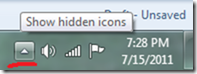
  • To find the settings click the small triangle to the left of the icons in the task bar (bottom left of the screen). 

Fix Deleted Power Icon On Windows 7 Taskbar 1

This might display the missing icon in the menu if it does then you want to make it permanently visible. 

If it doesn't you still need to follow these instructions.

  • Right click the Task bar (bar with start button along bottom of screen).
  • Choose properties.
  • Click the Customize button in the Notification area section of the Taskbar tab.

If you icon was in the fly out menu from earlier it will be listed hare.  Change the setting to Show Icon and notifications.

  • If your Power icon is not visible in this list click the link "Turn system icons On or Off".

Fix Deleted Power Icon On Windows 7 Taskbar2

  • Power should be listed here.  Change the setting to On.
  • Click the back button (top left).  Check the settings for what will display.
  • When finished click OK.

If you still cant get your icon back…

Well, May be, you had done any changes to the computer prior to the issue. If you remember any thing, try to undo those changes, if you are not sure, try system restore to the earlier version. please check the link Using System Recovery Options In Windows 7 to know how to use System restore in Windows 7

I would recommend you to perform System Restore to the point where it was working fine and check if it helps. View the following link to perform System Restore. Using System Recovery Options In Windows 7

Read More