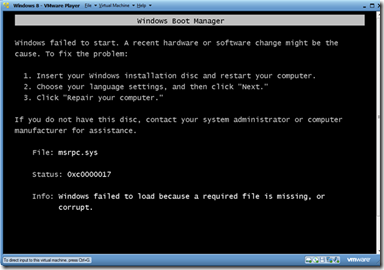
In my earlier post, we have discuss where to Download Windows 8 Developer Edition. If you have successfully downloaded Windows 8 and when you are installing Windows 8 as Virtual machine on VMware Workstation or on Microsoft Virtual PC you may get the following Error, HAL_INITIALIZATION_FAILED. and followed by a message that “Your PC ran into a problem that it couldn't handle, and now it needs to restart. You can search for the error online: HAL_INITIALIZATION_FAILED”
If you have not downloaded Windows 8, just head on to Microsoft's developer site and download it. You'll just need a PC with a 1GHz or faster processor (either 32- or 64-bit), 1GB of RAM (2GB for 64-bit), 16GB of hard disk space (20GB for 64-bit), DirectX 9 graphics with WDDM 1.0 or higher driver. Of course, if you want to play with Windows 8's touch abilities, you'll need a screen that supports multi-touch.
However if you want to test Windows 8 on a Virtual machine, you need to have the latest Virtual machine software, say for example, VMWare 8, VirtualBox, etc. This means, if you are using VMware 7 or earlier version, its time to upgrade your Software's.
Windows 8 Users are reporting success using a few products. Of the most popular options, Microsoft's baseline assessment is as follows:
Functional:
- Hyper-V in Windows 8 Developer Preview
- Hyper-V in Windows Server 2008 R2
- VMware Workstation 8.0 for Windows
- VirtualBox 4.1.2 for Windows
Non-functional:
- Microsoft Virtual PC (all versions)
- Microsoft Virtual Server (all versions)
- Windows 7 XP Mode
- VMWare Workstation 7.x or older
Now it is clear that, Windows 8 works on VMware 8 Workstation, Now, where to get VMware 8 Workstation?
Download VMware 8 Workstation From this location. Note: VMware is not a free edition, but you could try it for 30 days, at least we hope before which we can get a positive work around to install in our other Virtual Machine Software. Also, you can always get the VMware 8 on torrents. Here is a Google search result for VMware 8.
We suggest you to install Windows 8 on VMware 8 Workstation. Read my recent article explaining the Step by Step Instructions To Install Windows 8 on VMWare Workstation 8.
Important: You can install Windows 8 on Oracle VM VirtualBox and also have posted a step-by-step instructions on Installing Windows 8 on Oracle VM VirtualBox. But since most of you are experiencing problem installing Windows 8 on Oracle VM VirtualBox, We suggest you to install Windows 8 on VMware 8 Workstation. Read my recent article explaining the Step by Step Instructions To Install Windows 8 on VMWare Workstation 8.
HAL_INITIALIZATION_FAILED on After downloading the 32bit ISO from http://msdn.microsoft.com/en-us/windows/apps/br229516, I failed to install Windows8 on VMware Workstation.
It also happed to me when I first installed Windows 8 on Vmware 7. When I start installing, the first screen was "Loading Files", second was "Windows Developer Preview" and on third there was an error in blue background as:

Your PC ran into a problem that it couldn't handle, and now it needs to restart. You can search for the error online: HAL_INITIALIZATION_FAILED
I tried several times but the error is same. Please let me know if there is any way to solve this issue. Thank you in Advance.

We need at least the beta version 8.x of VMware Workstation to load the developer Build. For me, the solution was to install VirtualBox. Read the Instructions On How to install Windows 8 on Oracle VM VirtualBox. VMware 8 (even the beta version of VMware 8 Workstation ) will support Windows 8.
However, VMware 8 Workstation is about 500MB and Oracle VM VirtualBox is just around 18 MB. And we already have posted the Step-by-Step Instructions On How to install Windows 8 on Oracle VM VirtualBox also Explained With Screen Shots which will be more useful if you interested to try Oracle VM VirtualBox.
If we are installing Windows 8 on VMware 8, unless we install the VMware Tools on the virtual OS, we will not be able to use any App in Windows 8 Virtual Machine. So, immediately after installing Windows 8 on VMware, Install VMware Tools on the virtual OS.
As far as i have experimented, only after installing the VMware tools, I was able to use all the Apps in Windows 8 operating system.