Showing posts with label TaskManager. Show all posts

Thursday, July 21, 2011

bench3

Disappearing System Tray Icons In Windows Vista - Fix

When I working with my laptop (which is running Vista Ultimate) loaded itself out of sleep mode I noticed that the battery, volume, and network icons in the system tray were missing:

Naturally I was puzzled by this, and a little annoyed because I could no longer tell how much battery life was left (important because I like to get up and go sit on the deck while I work every so often).  First thing I did was check the Taskbar properties, and found something odd:

As you can see in the above image, the checkboxes for the volume, network, and power icons are grayed out and not-selectable.  From my Windows development experience, I knew that Vista keeps a cache of recently used system tray icons in the registry, so on a hunch I popped open RegEdit and found where this cache is stored:


and the values


To make a long story short, I backed up the registry, deleted the "Icon Streams" and "Past Icons Stream" values, opened up the Task Manager, ended the "explorer.exe" process, restarted "explorer.exe" and just like that the missing icons had returned:


An odd problem, but thankfully one that is easily fixed. 

It's worth trying to restart explorer.exe (see Step 4) before trying the registry modifications, because that may fix the problem on its own.

  • Go to Start > Run (or Windows-key + "R"), type in "regedit" and hit "OK".


  • Navigate to the key "HKEY_CURRENT_USER\Software\Classes\Local Settings\Software\Microsoft\Windows\CurrentVersion \TrayNotify"


  • Delete the values "IconStreams" and "PastIconsStream"


  • Now open up the Task Manager (Ctrl + Shift + Esc), go to the "Processes" tab, select "explorer.exe" and click "End Process"


  • Now open the "Applications" tab and click "New Task..." at the bottom-right of the window.


  • In the message box that pops up type in "explorer.exe" and hit "OK"


  • Explorer.exe will reload, and that's it! The missing icons should now be back in the system-tray where they belong.
Read More

Wednesday, June 22, 2011

bench3

Taskbar Blocked By Administrator | How To Fix

A task manager is a program used to provide information about the processes and programs running on a computer, as well as the general status of the computer. It can also be used to terminate processes and programs, as well as change the processes priority. In some environments, users can access a task manager by pressing the buttons Control-Alt-Delete.

Task managers can display currently running services (processes) as well as those that were stopped. They can display information about the services (such as Process ID and group) if known.

Task Manager will be the first target for some of the viruses so that the user can not look into the tasks that are running (normally the tasks that require more Memory. Disabling Task Manager is one way of viruses that try to make it harder for you to deal with their infections.

Even if you have anti-virus installed, you can still be infected by a new or custom virus that is not recognized by your anti-virus. Sometimes after removing the virus completely from our system, you’ll face new problems such as you can no longer bring up Windows Task Manager (CTRL+ALT+DEL).

And if you try to bring the Task Manager Up, you will get the error message saying “Task Manager has been disabled by your administrator”. This post will help you to re-enable the Windows Task Manager as long as it cannot open normally. Just follow these steps.

Before proceeding any further, you should run a complete and up-to-date anti-virus scan of your machine. If you have not installed any Anti Virus in your System, we commend to use Microsoft Security Essentials.

Microsoft Security Essentials is the name of Microsoft’s latest Anti-Virus/Anti-Spyware software for Windows operating system. It is already being tested internally at Microsoft and was launch in September last year.

It’s possible, perhaps even likely, that you’ve been infected. Once you come back virus-free, you can proceed with the fix. Usually when you try to run taskmgr.exe manually, you get this message:

Taskbar Blocked By Administrator  How To Fix 1

If you have Windows XP, Click Start, then click Run and type in gpedit.msc and press OK.

Taskbar Blocked By Administrator  How To Fix 2 Once in the Group Policy Editor, expand in turn:

  • User Configuration
  • Administrative Templates
  • System
  • Ctrl+Alt+Del Options

You should see something much like this:

Taskbar Blocked By Administrator  How To Fix Double Click on Remove Task Manager to change its setting:

Taskbar Blocked By Administrator  How To Fix 3 Click on Not Configured and then OK and Task Manager is available once again.

Read More

Friday, April 8, 2011

bench3

Change Priority Of Running Processes In Windows 7

Ever since Vista I have not been able to set my priority or Affinity to running jobs / processes.  I play games mostly on my PC but it is getting old, and so I wanted to increase the priority of my game (civilization 4) to high or real-time (it is currently defaulting to below normal).  Unfortunately every time I go into task manager and try to set either priority or affinity, no matter what I select, it says "operation could not be completed Access denied" then goes back to normal. How do I change this?

Normally changing priority for any process is only per session - when you kill process and restart it again priority will be restored to original. If you want to save  priority on constant you have to use any special software to do that.

Process priority will not be permanent without a 3rd party application adjusting . Access Denied error occurs while attempting to change the priority with the task manager with normal procedure. Third party software does address this issue.

For Example:
Special plugin for task manager

(both above programs are free)

I know also Ashampoo Core Tuner: >http://www2.ashampoo.com/webcache/html/1/product_2_0061___USD.htm

but this program is commercial.

You can also refer to the following support article to permanently set process priority in Windows Task Manager: How to Permanently Set Process Priority in Windows Task Manager?

http://www.askvg.com/how-to-permanently-set-process-priority-in-windows-task-manager/

Read More

Thursday, March 31, 2011

bench3

Rundll32.exe Goes To Max CPU Usage

I've had this problem for a while now. Sometimes when attempting to start games (not really games, also applies to certain programs), I'll see the game's executable load, along with rundll32.exe. However that's where it stops, and Rundll goes on to hog an entire core's CPU time to itself, without the game continuing to load.

Sometimes the problem goes away after a few tries, sometimes I'm forced to actually reinstall the game. Heck, the solution is sometimes totally random, I've had the problem temporarily solved once by running DirectX setup, but that only solved it for one specific game.

When I check the taskmanager, and the commandline for rundll, here's what I get:
C:\Windows\system32\rundll32.exe C:\Windows\system32\gameux.dll,GameUXShim {029de72b-57a0-4780-aeba-a7d553e82745};D:\Program Files\PlayOnline\SquareEnix\PlayOnlineViewer\pol.exe;3972 now I know gameux.dll has something to do with the game explorer, the second part is the game executable in question, in this case Playonline, but I've had it with other games as well.

It sounds like Final Fantasy XI is somehow incompatible with Windows 7 at this stage. I'd try configuring the game to run in compatibility mode for Windows XP or Windows Vista. To do this, right click on the program .exe and open the Properties menu, then navigate to the compatibility tab and select "Run this program in compatibility mode for..." Failing that, you may want to seek support on the official forums, as we can't really support individual games here.

And compatibility mode doesn't work for all games or software's, I've tried that before. Other games that have had this problem are for example Civilisation IV and Railroad Tycoon 3.

Solution From Technet:

Here is a temporary solution: Believe it or not, I've fixed the problem for now by instructing the game explorer not to collect game usage data. Since I did that I haven't had this problem. So it leads me to suspect that the game explorer is in it on something. Judging from my experience with programming, I'm thinking when trying to launch a game, gameux.dll is called first to perform certain tasks (in this case perhaps a +1 on the game usage counter if asked to keep tabs), after which the DLLs of the game executable are loaded (that's what Rundll is for, loading DLLs).

But I think when loading and executing one function from the game explorer's DLL, rundll ends up in an endless loop internally (hence the max usage of 1 core). Since I've instruced the game explorer now to have as little to do as possible with the games as possible, not keeping tabs on usage, not downloading updates, etc etc, gameux.dll is probably loaded but not used, and rundll goes on nicely to loading the other DLLs.
Well that's my idea at least, built from experience in programming.

I've found this solution to work every time:

  • Kill the game's *.exe process, leaving rundll32.exe still running (SysInternals' procexp64.exe or procexp.exe show the process tree better than Task Manager, so it's worth downloading SysInternals Suite if you haven't already got it.  You'll see rundll32.exe as a sub-branch of the *.exe for the game.  Or, to put it another way, if you're not sure what the game's *.exe is called, it's the one above the rundll32.exe thread that's hogging all the CPU power!)
  • Restart the game.
  • Kill the rundll32.exe thread (or suspend it if you're at all a bit doubtful)

I just wanted to point out that it's safe to kill the rundll32.exe thread after the successful restart of the game.  This stops it hogging all that CPU power while you play - more performance, less heat.

As to the cause, I'm even more mystified than before.  I've tried the Game Explorer fixes and that seemed to work.  BuT one one machine, it works now for the Admin User (me and the 'serious work stuff') but not for the Guest User (games only).  Both users now have identical settings in Games Explorer but the Guest is locked off the internet, so maybe I have to connect and start each game once in that user.

Read More

Thursday, March 24, 2011

bench3

Windows 7 Task Manager Has Lost Its Header Tabs

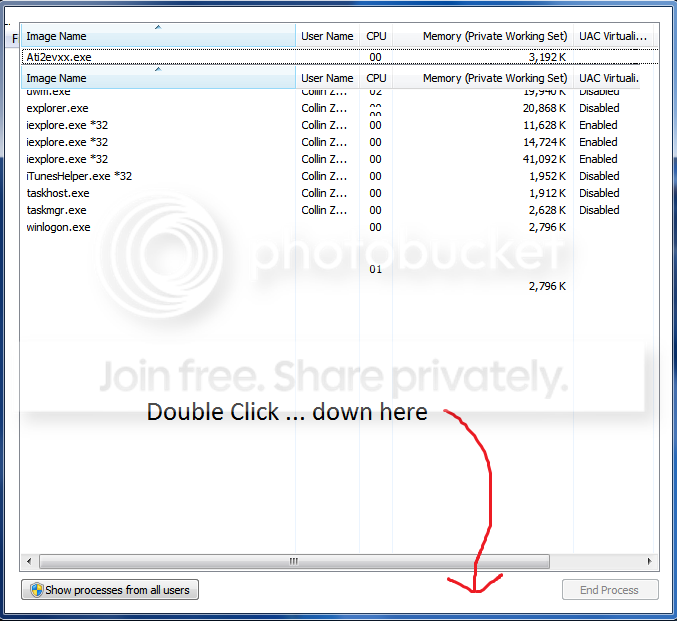
Somehow the task manager has lost the header tabs to move from applications to processes to network. It was there originally.

I also lose from time to time my volume control icon, and it doesn't become hidden, it just disappears completely. To change the volume I have to either go into the control panel/sound and then adjust the volume and leave that open if I need to turn it down. OR reboot and it sometimes comes back.

When I go to 'notification Icons" in control panel the icon and lettering for sound icon is not bold or high lighted but instead it is diminished. I have also seen a popup stating that modification will take affect when it (the sound) is activated as a pop up, but can't remember where I saw that happen.

Solution:

Double click on the edge of Task Manager.

http://i338.photobucket.com/albums/n410/stone_cold_05/TaskManager.png

---- Norton AntiVirus 2009

Windows 7 Task Manager Has Lost Its Header Tabs

In addition to the above mentioned solution, you can open the Notification Area Icons control panel item and you can try clicking the "Restore default icon behavior" link near the bottom of the window and see if that fixes the MIA volume control.

Read More

Friday, December 3, 2010

bench3

Enable Or Disable Task Scheduler And Task History In Windows

Task History in the Task Scheduler is Disabled: When you cant see any Task history in your task manager, it probably mean that your tasks are not running.. and which in fact mean that your tasks are disabled. If so, what to do to re enable your scheduled tasks. On the "History" tab for each of the them, it will give a message that "History (disabled)". How does one enable history tracking for the tasks.
If you want to enable history in task manager, you have to enable your tasks. And this is how you have to enable. On the able screen shot, Look at the window at the right under "Actions" and you will see an entry to enable all task history.
Read More