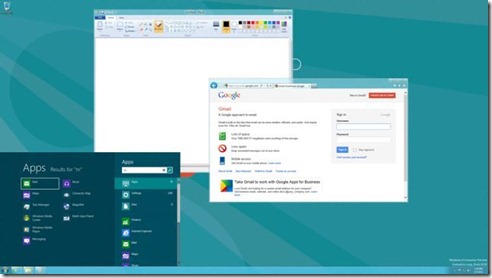
Showing posts with label Start Menu. Show all posts

Saturday, April 21, 2012

bench3

Get Windows 8 Tile and Start Screen In Windows 7

If you like Windows 8 Tile Based Start Screen, you might want to get the tile-based Windows 8 Start screen in your Windows 7 OS as well. If that is your wish, this article is right for you.

Just like in Windows Phone 7 Windows 8 includes tile-based Start screen, which replaces Windows Start menu with a customizable, scalable full-screen view of apps. These live tiles provide notifications, up-to-date information from installed apps. And most importantly, it is now possible to get the same User Interface in Windows 7 System as well.

Getting the new Metro UI based Start menu is pretty easy if you follow the steps given below.

Get Windows 8 Tile and Start Screen In Windows 7

Step-by-Step Instructions To Get Windows 8 Tile and Start Screen In Windows 7:

The developer of Omnimo Rainmeter skin, fediafedia, is working on a new version of the skin which will bring the exact Windows 8 Tablet UI Start menu to Windows 7, with Start at the top left and user picture at the top right of the screen.

1. Download and Install Rainmeter software.

2. Once you are done with Rainmeter installation, download Omnimo 3.1 skin for Rainmeter.

3. Extract the contents of the zip pack and then double-click on Omnimo.rmskin file to start installing the skin.

4. Once installed, add new panels and arrange them one by one to get the Windows 8 Start screen look.

Job Done, and enjoy your new User Interface on Windows 7.

Read More

Monday, April 2, 2012

bench3

Free App to Bring Start Menu on Windows 8 Desktop | Download Stardock

Windows 8 has lots of new features and easier, but still missing the traditional start menu, and to be simple, most of us want the intuitive functionality of what we’re used to and is most productive for us, with some of the new Features of Windows 8.

While most of the users who have updated to Windows 8 are happy with the Start screen and other features, a small number of users aren’t exactly happy with the Metro Start. For users who can’t live without a Start menu, Stardock Corporation has released a new tool named Start8 to bring back Start menu in Windows 8.

The Start button has been one of the best known images in Windows for over sixteen years now. Now on the latest Windows 8, when I look in the corner of my screen and just see an icon for Outlook, it’s still a little jarring. And I’ve been using Windows 8 for months now. So where did the Start button go?

Start8 is a free software that adds the missing Start menu to the taskbar. Upon installing the application, you will see the Windows 7-style Start orb on the taskbar and clicking on the orb will open the Start menu. As you can see in the below picture, Start8 is a Metro-inspired Start menu but includes all features and functions that you would expect in a Start menu.

When the program is running, pressing the keyboard Windows logo key will open Start menu. To switch to the Metro Start screen, you need to either move the mouse cursor to the lower left bottom and then click on the Start or use the Charms Bar. A right-click on the Start orb gives quick access to Run and Shutdown options.

Start8 supports both x86 and x64 versions of Windows 8. Please note that you will need to enter your email address to download Start8 program.

Large number of long time Windows users on the PC have not been happy that the familiar Start menu cannot be accessed on the desktop version of Windows 8.

Free App to Bring Start Menu on Windows 8 Desktop

Start8 brings the “Start” menu back to Windows 8. This product is free and is available now.

Download Start8

You may also be interested in knowing How To Get The Start Button In Windows 8 without using third party apps and on my other post, How To Use The Start Button On Windows 8 will let you know the shortcuts you can use on Windows 8.

Read More

Friday, March 9, 2012

bench3

How To Use The Start Button On Windows 8

The Start button has been one of the best known images in Windows for over sixteen years now. Now on the latest Windows 8, when I look in the corner of my screen and just see an icon for Outlook, it’s still a little jarring. And I’ve been using Windows 8 for months now. So where did the Start button go?

The short answer: it’s still there, it’s just on the right, and it looks a little different now. Also, you can still use the Windows logo key if you’re using your keyboard.

There's been  a bit of a debate surrounding the absence of the traditional Start menu and the Start button in the Windows 8.

Exactly the same thing happened with the early Windows 7 beta's. No "Start Button", everyone panicked! But, by the time Windows 7 was released, everything, including the "Start Button" was back as normal.

How To Use The Start Button On Windows 8

I lost a bit of faith when I first saw Windows 8 and all the UI changes but mainly this is what bothered me. But then I thought about it for a while and I thought “when do I really use the start menu?”.. I found I mainly use application shortcuts from the taskbar and very rarely the start menu, now which could just be moved to the desktop on Windows 8.

The new Start menu in Windows 8 also has a list of charms, including Search which by default is set to show all of the Windows 8 apps you have installed. Once you type in something the apps filter out until you find the one that best matches your search term. Windows 8 users can also use the Search charm while inside an app.

The Settings charm also changes when you are in the app such as showing the control panel in the desktop or accounts while using email. The new app bar also come into play when you use a Windows 8 Metro app. Each app has its own specific commands in the app bar, such as opening a new window in Internet Explorer 10.

There's also a new list of Windows 8 keyboard commands that you can check out for some shortcuts to doing tasks.

Problem lies in the absence of start menu rather than the start button.....and Microsoft refuses to address that.

There is also another way you can work it out. Just click in the bottom left corner and it opens the Start Screen. I find that faster than using the charm bar. But this is different even though both take you to the same place.

Another easy way is, Just press the windows key and type in the application you want. It's faster and has better search than the start menu ever did.

At this point I can honestly see Microsoft putting back the release date so that they can work on both the OS itself and getting the new ways of doing things out into the media.

Here is the thing. By now we've all had some time playing with Windows 8. People love it or hate it. We've read stories on how good it is and how bad it is. But here is the thing, this OS was clearly designed for a touch environment and neglected the desktop environment. It seems like Microsoft is trying to get their foot in the tablet market.

Read More

Tuesday, March 6, 2012

bench3

How To Get The Start Button In Windows 8

You'd be surprised how many emails we get asking how to get the start button back in Windows 8. 

Something windows 7 doesn't need. There's no reason to click the All Programs section of the start menu in Windows 7 unless you can't remember the name of an app you want. And how often does that actually happen?

I remember all the complainers bashing Vista's search bar in the Start menu. What is this useless search doing here? I can launch things faster because I organize everything into folders."

And everything improved once people realized that they could hit the Start key, type in "wo" and hit Enter to launch Word.

Just the same on 8. Its awesome fast to launch anything from Metro. Just start typing what you want. But how many of us know how good this feature is? There is more to Windows 8 than Metro, a lot more, but not enough that it outweighs the massive disadvantage in adding Metro.

There's no point to Windows 8 if all users are going to do is force a way to get the start button back. But, in time users will adapt, and a few years from now those still complaining will look as silly as the "Save XP" campaign that was waged during Windows 7's development.

Just because something is new doesn't mean it is automatically an improvement over what came before. You should approach with an open and neutral mindset so as to best be able to judge what you are presented with.

Actually, Windows 8 is not for those who are afraid of change and can't multitask like the elite Metro users. Yes I mean it!

Ok, if you don’t like the Windows 8 User Interface, and you would like to get a start menu for your Windows 8, here is a good news for you all.

Start Button In Windows 8:

Stardock is planning to release a free app for the Windows 8 that would allow desktop users to launch a more traditional Windows Start menu. The app is scheduled to be released later this week.

But if you absolutely, positively cannot wait for the app to be released, there is perhaps a way to create an approximation of the Start menu with no need for a third party app.

The method is actually pretty simple.

  • In the desktop version of Windows 8, you launch Windows Explorer and then click the View tab on the toolbar.
  • After that you then check off the "Hidden items" box which should reveal a number of hidden files and folders.
  • After that is done, you right click the taskbar and select Toolbars.
  • You then select the New Toolbar menu item which brings up a new screen.
  • Then you select Program Data, then Microsoft, then Windows and finally Start Menu.
  • That last action will create a Start Menu toolbar which should appear on the far right of the taskbar.
  • You can move the menu if you want by right clicking the taskbar and then unchecking the Lock the Taskbar selection.

 How To Get The Start Button Back in Windows 8

The final result should look like the screenshot above.

Of course, This doesn't look so nice, but it replicates the classic start menu, something windows 7 doesn't even have as well.

Read More

Monday, February 6, 2012

bench3

Windows 8 Got a Hidden Start Menu Orb

Windows 8 operating system comes with quite a few major design changes over previous versions of the Windows operating system.

The new Metro UI interface obviously makes the top of that list. Still most of the users are not sure whether it will improve their workflow on desktop systems. The Windows 8 Beta, which will supposedly be released later this months, should give everyone an answer to that.

A recent version of Windows 8 development preview suggests that Microsoft may have plans to change the desktop interface significantly as well. The developer preview released last year already crippled the start menu that Windows users were using in previous versions for various tasks such as starting applications, searching or opening the Control Panel.

The latest development preview version of Windows 8 has the taskbar without a start menu button.  However, the start menu button appears only when users move the mouse (or their finger) to the left lower corner of the screen.

Windows 8 Got a Hidden Start Menu Orb

The basic idea behind the move, besides removing noise from the interface, is to make users use the taskbar and the new charms for all the things they are doing on the desktop. Charms basically appear when you move the mouse to the edge of the screen.

Pinning applications directly to to the taskbar will become more of a necessity in Windows 8, considering that users do not have options anymore to start apps from the start menu. What about seldom used applications, you may ask? Your only options at this point in time seem to be the built-in search or to use windows Explorer to navigate to application folders directly.

What’s your take on the change? share your comments.

Read More

Friday, November 18, 2011

bench3

Get The Metro Interface Start Menu On Windows 7

Most of us have already experienced the new user interface (UI) of Windows 8 OS  with some great new features. And this article is for those who might want to get the tile-based Windows 8 Start screen in your Windows 7 OS as well.

Windows 8 includes tile-based Start screen just like in Windows Phone 7 (unlike all the other desktop Operating System), which replaces Windows Start menu with a customizable, scalable full-screen view of apps. These live tiles provide notifications, up-to-date information from installed apps.

Getting the new Metro User Interface based Start menu On Windows 7 is pretty easy if you follow the steps given below.

Metro Interface Start Menu On Windows 7

Here is the preview of the skin with exact Windows 8 Start screen look

Here is the Step-by-Step Instructions On How to get Metro User Interface based Start menu On Windows 7:

This new version of the skin will bring the exact Windows 8 Tablet UI Start menu to Windows 7 with Start at the top left and user picture at the top right of the screen.

Read More