Showing posts with label SAP. Show all posts

Saturday, February 20, 2016

Anonymous

SAP TCode to Release Credit Block

SAP TCode to release the credit block is VKM3


Here are few other SAP TCodes related to Credit Management which is worth sharing here.


  • FD32 - Change Customer credit Management FI - Credit Management
  • OVA8 - Automatic credit Checks SD - Credit Management
  • VKM3 - Sales Documents SD - Credit Management
  • OVAK - Sales Order Type Assignment SD - Material Maintenance
  • VKM1 - blocked SD Documents SD - Credit Management
  • VOV8 - Document Type Maintenance SD - Basic Functions
  • FD33 - Display Customer credit Management FI - Credit Management
  • OB45 - C FI Maintain Table T014 FI - Basic Functions
  • OVAD - Delivery Type Assignment SD - Credit Management
  • VA02 - Change Sales Order SD – Sales
  • VKM4 - SD Documents SD - Credit Management
  • OVFL - Assign credit contrl area/sales area SD - Credit Management
  • OB38 - Assign Co.Code -> Cred.Cntl Area FI - Basic Functions
  • OVA7 - credit Relevancy of Item Categories SD - Credit Management
  • OB01 - C FI Maintain Table T691A FI - Basic Functions
  • VKM5 - Deliveries SD - Credit Management
  • VKM2 - released SD Documents SD - Credit Management
  • MRBR - release blocked Invoices MM - Invoice Verification
  • OVA6 - credit Groups for Document Types SD - Credit Management
  • VA14L - Sales Documents blocked for Delivery SD - Basic Functions
  • OVB8 - Criteria for Creating a Requirement SD - Credit Management
  • BS02 - Maintain status profiles Cross Application - General status management
  • XD05 - block customer (centrally) FI - Basic Functions
  • OVZ7 - C SD Tab TVLS Deliveries: blocking SD - Basic Functions
  • FD24 - credit Limit Changes FI - Credit Management
Read More
bench3

T-Codes On SAP SD Modules

    The SAP SD module is one of the primary ERP module developed by SAP. SAP service and distribution deals in better management of sales and customer distribution data and processes in organizations. SAP SD module works closely with other SAP modules towards effective process work.

The most frequently used transaction codes related to SAP SD Module are as follows:

  1. VS00 - Master data
  2. VC00 - Sales Support
  3. VA00 - Sales
  4. VL00 - Shipping
  5. VT00 - Transportation
  6. VF00 – Billing

Just as we the above said most frequently used T-Code, The below are the complete list of TCodes that are related to SAP SD module.

Sales tcodes SD-SLS

  • VA01 - Create Sales Order
  • VA02 - Change Sales Order
  • VA03 - Display Sales Order
  • VOV8 - Document Type Maintenance
  • VA05 - List of Sales Orders
  • VOV7 - Maintain Item Categories
  • VA21 - Create Quotation
  • VA41 - Create Contract
  • V_V2 - Updating Sales Documents by Material
  • VA00 - Initial Sales Menu
  • VOV4 - Table TVEPZ Assign Sched.Line Cat.
  • VA11 - Create Inquiry
  • VA22 - Change Quotation
  • VOV6 - Maintain Schedule Line Categories
  • VF05 - List Billing Documents

Billing tcodes SD-BIL

  • VF01 - Create Billing Document
  • VF02 - Change Billing Document
  • VF04 - Maintain Billing Due List
  • VF03 - Display Billing Document
  • VTFL - Delivery to bill copying control
  • VF11 - Cancel Billing Document
  • VTFA - Order to bill copying control
  • VFX3 - List Blocked Billing Documents
  • VTAA - Order to order copying control
  • VTLA - Order to delivery copying control
  • VTAF - Bill. doc. to order copying control
  • VF06 - Batch billing
  • VF21 - Create Invoice List
  • VF44 - Revenue Recognition: Worklist
  • VTFF - Bill to bill copying control

Basic Functions tcodes SD-BF

  • NACE - WFMC: Initial Customizing Screen
  • VBKD - Bonus Buy: Condition Types
  • VOFM - Configuration for Reqs, Formulae
  • VARA - Archiving
  • OVA8 - Automatic Credit Checks
  • VKM3 - Sales Documents
  • CO09 - Availability Overview
  • VKM1 - Blocked SD Documents
  • VORA - Archiving Control for Sales Doc.
  • VF31 - Output from Billing Documents
  • OVZ9 - SD Cust. Control Availability Check
  • VKM4 - SD Documents
  • CO06 - Backorder Processing
  • VV31 - Create Output : Billing
  • VOTXN - Maintain Text Customizing

Information System tcodes SD-IS

  • MCTA - SIS: Customer Analysis - Selection
  • MCTC - SIS: Material Analysis - Selection
  • MCTI - SIS: Sales Empl. Analysis Selection
  • MCTE - SIS: Sales Org. Analysis - Selection
  • MCV9 - Call Up List of Incomplete Documents
  • MCTG - SIS: Sales Office Analysis Selection
  • MCTK - SIS: Shipping Pt. Analysis Selection
  • MCSC - SIS: Display Evaluation
  • MCV5 - Call Up Price List w.Stepped Display
  • MCVCHECK01 - SIS: Update Group Check
  • MCSA - SIS: Create Evaluation
  • MCVCHECK02 - SIS: Header STAFO Check
  • MCVCHECK03 - SIS: Item STAFO Check
  • MCTV03 - SIS: Address List - Selection
  • MCV6 - Call Up Indiv. Customer Prices List

SD General tcodes

  • VA01 - Create Sales Order
  • VA02 - Change Sales Order
  • VF01 - Create Billing Document
  • NACE - WFMC: Initial Customizing Screen
  • VK11 - Create Condition
  • VBKD - Bonus Buy: Condition Types
  • VF02 - Change Billing Document
  • VOFM - Configuration for Reqs, Formulae
  • VA03 - Display Sales Order
  • VF04 - Maintain Billing Due List
  • VKOA - Accnt Determination
  • VOV8 - Document Type Maintenance
  • VA05 - List of Sales Orders
  • VF03 - Display Billing Document
  • VTFL - Delivery to bill copying control

POS Interface tcodes SD-POS

  • WPMA - POS Download: Manual Request
  • WPER - POS interface monitor
  • WPUK - POS simulation
  • WPMU - POS download: change message
  • WLB1 - Investment Buying Reqrmnt Determntn
  • WVFB - Inbound store order processing
  • WLB3 - Autom. opt. PO-based load building
  • WPMI - POS download: initialization
  • WVFI - Simulation: Store Physical Inventory
  • WPER2 - POS: Analysis/Auxiliary Reports
  • WPUW - Goods movements simulation
  • WPED - Sales Audit Editor
  • WDLS - Delete Error Messages
  • WLB2 - Investment buying analysis
  • WVFD - Process phys. inventory doc. further

Electronic Data Interchange tcodes SD-EDI

Sales Support tcodes SD-CAS

  • VC/2 - Customer Master Data Sheet
  • VC01N - Edit Sales Activity
  • VC01 - Create Sales Activity
  • VC/1 - List of Customers
  • OVBR - Assignment to Item Category
  • OVBS - Rule Table for Determining Dates
  • VC00 - Sales Support
  • OV3Z - Determine Prod. Allocation Hierarchy
  • OV1Z - Define Product Allocation Procedure
  • OV4Z - Product Allocation Control
  • VC05 - Sales support monitor
  • VC02 - Change Sales Activity
  • OV7Z - Create Characteristics for Rem.Alloc
  • VC03 - Display Sales Activity
  • OV2Z - Define Product Allocation Object

Foreign Trade tcodes SD-FT

  • VEIW - Create file INTRA/EXTRA/KOBRA
  • UPDA - Foreign Trade: Mater data transfer
  • LEER - Create long-term VenDecl. (customer)
  • VPM4 - Merge: Japan - Import Code Number
  • VX11N - Create financial document
  • VINK - Import Processing: Quota Number
  • VEFU - Foreign Trade: Add INTRASTAT Data
  • VE01 - INTRASTAT: Selection Dispatch to EU
  • LEMA - Dun long-term vendor decl. (vendor)
  • VI49 - Foreign Trade Data Control in Doc.
  • ENGR - Periodic Declarations
  • VI29 - Incompletion - Foreign Trade Data
  • VX22 - Change license data (old)
  • ARKO - KOBRA: Archiving
  • VX13N - Display financial document

Master Data tcodes SD-MD

  • VK11 - Create Condition
  • VKOA - Accnt Determination
  • V/06 - Condition Categories: SD Pricing
  • VK12 - Change Condition
  • V/08 - Conditions: Procedure for A V
  • OVKK - C RV Table T683V "ProcedrDeterminatn
  • VOFA - Billing Doc: Document Type
  • VK13 - Display Condition
  • VBOF - Rebate: Update Billing Documents
  • VOR2 - Joint Master Data: Division
  • VBN1 - Free goods - Create (SD)
  • V/LD - Execute pricing report
  • VBO2 - Change Rebate Agreement
  • V/07 - Maintain Access (Sales Price)
  • VOR1 - Joint Master Data: Distr. Channel
Read More

Thursday, February 18, 2016

bench3

How to Create Company Code in SAP

The following tutorial guides you how to define company code in SAP FI step by step with screen shots. After configuring company, next step is to configure thecompany code. Let us discuss briefly about company code.

Define Company Code in SAP

About Company Code :Company Code in SAP is the smallest organizational unit of Financial Accounting for which you draw individual financial statements like Balance Sheet and Profit & Loss Account for purpose of external reporting. The Creation of company code in sap is mandatory.


PATH :-  IMG Reference –> Enterprise Structure –> Definition –> Financial Accounting –> Edit, Copy, Delete Company Code

Transaction code to Define company Code  :- OX02

Steps to Define Company Code in SAP: –

Step 1 :-  Enter Transaction Code SPRO in the commend field and press enter

How to Create Company Code in SAP 1


Steps 2 :-  In customizing execute project screen select SAP Reference IMG

How to Create Company Code in SAP 2

Step 3 :- In next screen select Edit, Copy, Delete check Company Code

How to Create Company Code in SAP 3

Step 4 :- The below screen displays after selecting Edit, Copy, Delete Company Code ( Define Company Code )

How to Create Company Code in SAP 4


we can create company code by selecting above two options. By selecting first option copy, Delete, company code all the configuration and tables get copied automatically along with assignments.


Here we are creating company code manually configure all the assignments by selecting second optionEdit Company Code Data . Double click on Edit Company Code Data

How to Create Company Code in SAP 5


Step 5 :- Click on New EntriesNew Entriesand update the following details


How to Create Company Code in SAP 6

1. Update new Company code key AD06

2. Give the company name Adarsh Technologies for identifying the company code key

3. In Additional Data update the details of  City, Country, local Currency of company, Language.

Click on Address and Update the following fields

How to Create Company Code in SAP 7

After updating Address enter Click on Save icon How to Create Company Code in SAP Save

Thus the company code AD06 is created in SAP.

Read More
bench3

Create and Define a Company in SAP FICO

The following tutorial guides you how to define or create a company in SAP step by step with screen shots. Let us discuss briefly about company.

Define Company in SAP

About Company in SAP:- Company is theorganizational unit for which individual financial statements can be drawn according to the relevant commercial law. A company can comprise of one or more company codes. A Company has local currencies in which its transactions are recorded. All company codes within a company must use the same transaction Chart of accounts and the same Fiscal Year. Creation of company in sap is optional.

Path to Define Company in SAP :-

SAP IMG Path: – SPRO –> Implementation Guide for R/3 Customizing (IMG)  –> Enterprise Structure –> Definition –> Financial Accounting  –> Define Company

Transaction code to “Define Company in SAP” :- OX15

Steps for creation of a Company: – 

Step 1 :-  Enter Transaction Code SPRO in the commend field and press enter on the Keyboard

Create and Define a Company in SAP FICO 1

Step 2 :- Next Customizing execute project screen select SAP Reference IMG

Create and Define a Company in SAP FICO 2

Step 3 :- After Selecting SAP Reference IMG, a new screen IMG Path will be displayed. Select Define company execute icon for creating a company

Create and Define a Company in SAP FICO 3

Next Screen will be displayed after selecting the define company execute icon

Create and Define a Company in SAP FICO 4

Step 4:– Now Select New entries icon to create a new company and enter the company details

Create and Define a Company in SAP FICO 5

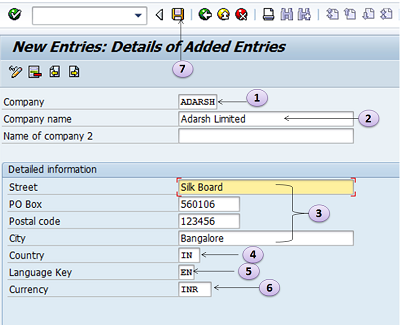
The following details are to be entered for creating a new company

  • Enter 6 character alphanumeric code key that represents the group of company
  • Enter name of your company.
  • In the Detailed information update the address – Street name, PO Box#, Postal code, City.
  • Enter Country Code of the company
  • Enter language key
  • Enter local currency for the company (also known as Company code currency)
  • Click on Save icon or CTRL+S after updating the required information
  • Thus new Company ADARSH is created in SAP.

The following video explains how to define company in SAP step by step.

Read More

Wednesday, February 17, 2016

bench3

TCODE to List Active and Inactive users in SAP

TCODE to check the list of active and inactive users in SAP in a single shot.

There are few customizing Tcodes, but most of us want to know if there is any standard Tcodes to list all the users in SAP.


T-Code AL08 & SM04.


If you are looking for a single TCODE where we can see list of total users(active & inactive) in a single shot.Is theer anything as such? SUIM will be the best option, and also i would suggest you to try Report RSUSR006 which lists locked users, the last login date, and whether users have ever logged in (and changed their passwords).


If you want to know all locked user in system then you can use transaction S_BCE_68001402

Read More

Tuesday, February 16, 2016

bench3

How to Create a Company in SAP | Define Company in SAP FICO

How to Create a Company in SAP | Define Company in SAP FICO: The following steps will guides you on how to define / create a company in SAP. In order to understand easily am also posting with the exact screen shots.


Ok, what is the company in SAP? Lets define company first.: Company is the organizational unit for which individual financial statements can be drawn according to the relevant commercial law. A company can comprise of one or morecompany codes. A Company has local currencies in which its transactions are recorded. All company codes within a company must use the same transaction Chart of accounts and the same Fiscal Year. Creation of company in sap is optional.


Path to Define Company in SAP :- 

SAP IMG Path: – SPRO –> Implementation Guide for R/3 Customizing (IMG)  –> Enterprise Structure –> Definition –> Financial Accounting  –> Define Company

Transaction code to “Define Company in SAP” :- OX15

Steps for creation of a Company: – 

Step 1 :-  Enter Transaction Code SPRO in the commend field and press enter on the Keyboard

How to Create a Company in SAP  Define Company in SAP FICO 1

Step 2 :- Next Customizing execute project screen select SAP Reference IMG

SAP-Reference-IMG

Step 3 :- After Selecting SAP Reference IMG, a new screen IMG Path will be displayed. Select Define company execute icon for creating a company

How to Create a Company in SAP  Define Company in SAP FICO 3

Next Screen will be displayed after selecting the define company execute icon

How to Create a Company in SAP  Define Company in SAP FICO

Step 4:– Now Select New entries icon to create a new company and enter the company details

How to Create a Company in SAP  Define Company in SAP FICO (2)

The following details are to be entered for creating a new company
  1. Enter 6 character alphanumeric code key that represents the group of company
  2. Enter name of your company.
  3. In the Detailed information update the address – Street name, PO Box#, Postal code, City.
  4. Enter Country Code of the company
  5. Enter language key
  6. Enter local currency for the company (also known as Company code currency)
  7. Click on Save icon or CTRL+S after updating the required information

Thus new Company ADARSH is created in SAP.

Read More