Showing posts with label Laptop. Show all posts

Friday, May 18, 2012

bench3

Thinnest and Lightest 14-inch Ultrabook from Lenovo

Ultrabooks are looking a little thin these days, and Lenovo claims to have made the thinnest and lightest Ultrabook yet – the Thinkpad X1 Carbon.

The Thinkpad X1 Carbon is the successor to 13-inch Thinkpad X1. The name is derived from its carbon fiber frame, allowing the 14-inch Ultrabook to weigh in at 3 pound with a mere 18.8mm thin.

It has enhancements over its predecessor beyond form factor. In fact, the larger 14-inch screen allows for a 1600x900 resolution, and the whole thing will be powered by Intel's third-generation Ivy Bridge processor.

It will also come equipped with a 720p HD camera, USB 3.0 port, a backlit keyboard, and the option of 3G connectivity.

Lenovo will also renovate its Thinkpad X, T, W, and L lines, available in June. Most notably, Intel's third-generation Ivy Bridge processor will included in Thinkpad Ultrabooks, as will RapidBoost technology and backlit keyboards.

Thinnest and Lightest 14-inch Ultrabook from Lenovo

Now with 4G LTE

However, the hook is the introduction of 4G LTE for the first time in Lenovo's Thinkpad Ultrabooks, starting with the Thinkpad X230 and T line. 4G LTE connectivity will be available without a contract, served a la carte at $1.99 for 30 minutes of access. Sadly, it seems 4G LTE will not be a feature on the X1 Carbon.

Lenovo is making a big fuss over the Thinkpad X1 Carbon's size and weight. It's for good reason, too.

It's positioned to be the thinnest and lightest 14-inch Ultrabook on the market. But that might not be enough, according to rumblings of a thinner MacBook Pro set for later this year.

Word has it that Apple's 15-inch Macbook Pro is going on a diet, dropping its optical disc drive and Ethernet port for a slimmer figure.

Read More

Tuesday, May 15, 2012

bench3

Laptop or Tablets, What you think is the best for you

Technology is the making, usage, and knowledge of tools, machines, techniques, crafts, systems or methods of organization in order to solve a problem or perform a specific function.

The level of our technology keeps on improving. Over the years, there have been many advancements and improvements that technology offers us. But are we paying a price for it or is that we buy more than what we need? For example, we have laptops and tablets, though both are different in its use, most of the people can stay with Tablets as they can get their work done with the fit resources.

Now the companies compete on the laptop and tablets, which is better and with that people were directed to use mobile devices such laptops and tablets pcs, but as the demand in the technology increased and internet is easy to find in any place you go like, at the restaurants, the beach and everywhere even in the bus, taxies and planes, people started to need something to make their daily life and work faster not harder.

Laptop or Tablets, What you think is the best for you

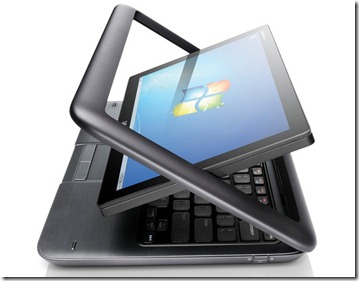
Image: Hybrid Laptop From Dell

Taking your laptop everywhere will hurt your arm, the usage of the keyboard and the mouse is going to ache your fingers, your wrist and take much of your time. So the technology invented the lightweight kindles to make your time on the pc more fun, no neck pain and easy to use it where ever you go and fast enough to make you the best in your work.

But never forger, laptop has the higher ability than Tablets… needless to explain this. So where do you stand? Not every one is going to say its Laptop, and not most will say its tablets… The decision is up to you..
r

Read More

Wednesday, December 28, 2011

bench3

Sony VAIO E Series VPCEH25EN Advantages And Disadvantages

The new Sony VAIO VPCEH25EN notebook is engineered to meet your entertainment needs at an affordable price. Powered by Intel 2nd Generation Core i3 processor, this Sony VAIO E Series laptop gives you power to fulfil daily tasks like working on office documents, video conferencing, editing multimedia files or watching movies.

This notebook PC comes loaded with Windows 7 Home Basic operating system to make your life simpler. With VAIO Care, Media Gallery and Quick Web Access easy-to-use hotkeys, you can access web and multimedia files by a single touch.

Style and Portability:

The main attraction of VAIO E Series laptop is its ultra-stylish design and robust casing. Encased in durable plastic, the chassis is very sturdy and capable of resisting bumps and shocks while on-the-move. This Sony entertainment notebook has a matte-finish exterior and the interior panel dons unique truss pattern texture, which can resist scratch, dust and finger prints.

Sony VAIO E Series VPCEH25EN Laptop Advantages And Disadvantages

The perfectly laid out Chiclet-style keyboard and touchpad with multi-touch gesture support make typing and navigation smoother. With dimensions of 369.8 x 248.4 x 36.8 mm and 2.7 kg weight, VAIO VPCEH25EN is suitable for office and home use. The 15.5 inch LED backlight TFT colour display makes this personal computer a low-price entertainment device.

The display screen with a resolution of 1366 x 768 pixels consumes less power and offers widescreen 16:9 aspect ratio. The bigger monitor gives more space for productive use and offers maximum entertainment while watching movies.

Performance

Built on Intel HM65 Express chipset, VAIO E Series notebook is crafted to meet your multitasking demands. The powerful Intel 2nd Generation Core i3 2330M processor has 2.20 GHz clock speed and 3 MB cache memory. Preloaded with 2 GB DDR3 RAM, which is expandable up to 8 GB via dual memory slots, this Sony laptop lets you work on multiple applications at a time. When it comes to graphic performance, this VAIO budget laptop is one of the best models in the market.

With NVIDIA GeForce 410M GPU graphic processor and a dedicated 512 MB DDR3 graphic memory, you can play modern high-end graphic games and watch high-quality videos without any disruption. The 320 GB SATA Hard Disc Drive with 5400 RPM brings enough space to store your movies, songs, photos and all other important data.

Multimedia and Connectivity

With inbuilt internal Stereo speakers and Intel High Definition Audio hardware, this Sony laptop is capable of delivering support and sound quality for up to eight channels at 192 kHz / 32-bit quality. Using the integrated web-camera and monaural microphone, you can video chat with your friends and family via Skype, Google Talk, Facebook and Google Plus.

Sony VAIO E Series VPCEH25EN Advantages And Disadvantages

Along with four USB ports, this portable laptop has an HDMI output port, which lets you connect to other compatible devices like HD TVs, music systems, gaming consoles, LCD monitors, home theatre systems and many more. VAIO VPCEH25EN also offers an Ethernet port, Mic-in port, DVD SuperMulti Drive and Multi Card reader. The Bluetooth and Wi-Fi bring faster wireless internet connectivity.

Battery and Other Features

Backpacked with VGP-BPS26 Lithium-ion battery, this VAIO budget laptop promises backup time up to 3 hours. The Sony notebook comes preloaded with utility software like VAIO Control Center, Battery Care Function, VAIO Gate and WebCam Companion.

Sony want to be compatible with Dell and HP. And this new Sony VAIO VPCEH25EN notebook is engineered to meet your entertainment needs at an affordable price.

So far it looks good and can be treated as a very good deal. However, in my personal opinion i wish you should read some points which i think you should consider if you are really serious about a better usability.

I have been using two laptops from Sony, and my personal experience.. the drivers and software's that Sony provides tend to crash. There is no particular place from where you can download ALL of them. (Especially the utility software's). You need to (backup) burn a couple of Dual Layer DVDs and the DVD Drive is useless even with minimum usage, but getting the parts changed (in warranty period) is quick.

  • I feel its very low Hard Disk Capacity. 320 GB (officially), around 280 GB(Bundled), and around 297GB (after formatting)
  • RAM (2GB) is NOT LOW for NORMAL usage, same with Processor.
  • Webcam performs very bad… almost like the olden days VGA Camera.
  • WiFi is poor ( only 1-2MB/s when I was transferring files from another Vaio.
  • The Screen is Awesome!! You won't find better. But the Speakers are pathetic.
  • On the long run, the borders of the screen develop scratches due to folding.
  • The "ASSIST" and "VAIO" keys on the top of my laptop worked only once when i bought this laptop.
  • Headphone and Mic inputs are on the left side. I personally feel better if its in front.
  • No dedicated key for volume. That means, you have to control the volume and brightness using Function “FN” key. But it will work only if your drivers are working perfect.

Overall, If you look style, brand and performance. Sony VAIO VPCEH25EN is good for the current price tag.

Read More

Sunday, June 5, 2011

bench3

Fix Problem With Ease of Access | Keyboard Locks Every Time Computer Starts

Problem With Ease of Access as Keyboard Locks Every Time Computer Starts. This happens for any Laptop. It can take up to 5 minutes just to get through all the annoying hassles just to get to type when Ease Of Access is giving such a trouble.

Scenario: Keyboard keeps locking every time i restart my laptop computer. When i open up the 'ease of access' option it is not ticked.  But when I open Word and go to shut down--> and 'lock' option---> and open the ease of access i find it ticked and have to un-tick it just to type. 

Work Around: This is not a bug in the Windows nor we cant say that the hardware is working strange. It should be a virus or a malware that is trying to trick you. You may follow below methods which may help you to resolve your issue:

Method 1: Try start your computer in safe mode and check for the issue.

Advanced startup options including safe mode
http://windows.microsoft.com/en-US/windows7/Advanced-startup-options-including-safe-mode

If issue does not persist in safe mode, try performing clean boot and check for the issue.

Note: After troubleshooting, make sure to put the computer to start as usual as mentioned in Step 7 in the above KB article.

Method 2:

I would suggest you to perform a full system scan just to be safe.

http://www.microsoft.com/security/scanner/en-us/default.aspx

Note: Any data files that are infected may only be cleaned by deleting the file entirely, which means there is a potential for data loss.

Read More

Saturday, January 8, 2011

bench3

How To Get More Out Of Your Laptop Battery

In my previous post i have discussed on how to extend the life of your battery. And here lets see how to get more out of your laptop batteries. 

Laptops tend to lose their charm quickly when you’re constantly looking for the nearest power outlet to charge up. How do you keep your battery going for as long as possible? I frequently hear complaints from friends and people i know who have been assigned a laptop that their battery doesn’t last as long as it use to. Here are a few tips to help increase the battery life of a laptop battery.
The simple fact is, batteries do lose their longevity after time, your battery will die after a year if you don’t purchase an extended warranty. But I'd say that after a year, your battery should be in pretty good shape.

The first sign or complaint is that you can’t get through a 2-hour DVD movie.

Watching a movie is a big drain on your battery, but you should be able to stretch your viewing time. Before your trip, be sure your battery is fully charged.

Rechargeable batteries will give you their longest charge when you've fully discharged and recharged them several times in a row. It may be a pain, but a day or so before your trip, let your laptop run until the system shuts down. Then recharge it and, if you have time, discharge and recharge it a second time, preferably overnight. This is easier to do at home before a trip, but remember to do it at the hotel before your return flight as well.

Once your battery is full, tweak your laptop's settings to maximize battery life. Start with your monitor, which is the biggest battery hog. Find the brightness adjustment for your screen and turn it down by at least half. Dimming the screen could buy you almost an hour more power.

The battery life on Apple laptop will increase by 45 minutes when you turn your brightness down. Windows XP and Macintosh OS X both have accurate battery-monitoring software. Each operating system can display how many minutes of remaining battery life you have. Do some experimenting with the screen settings and watch how your battery life increases.

Other tips to save power include turning off wireless networking, removing PC cards and not using floppy or CD drives.

The Energy Saver control panel on your Mac and the Power control panel in Windows XP allow you to configure your system to power down the screen and hard drive after a period of inactivity.

If you fly frequently, you might find which planes have power. Check with your airline's Web site for information on which of its planes have power outlets and where they are located on board. You will need a special power adapter for airplanes that is available at most computer stores.

Also, look for power outlets during airport layovers. In the gate area of the airport, sit near walls and columns to take advantage of plugs. That two-hour layover can be enough to recharge your battery.

Finally, the best advice I can give is to buy a second battery for your laptop. Paying $75 or $125 for another battery will instantly double your movie enjoyment.

ALso Read:
Read More

Friday, January 7, 2011

bench3

Dell Should Improve Some Major Gripes On Their XPS Series

Dell should improve some of the little demerits of their XPS laptops as these although are minor, have turned out to be a major gripe. These are the only issues stopping me to buy the XPS, and I really want the XPS to improve in the next revision. Like:
  • Clumsy looking design - The design doesn't impress much in terms of beauty and eye-catchiness, especially due to the awkward-looking screen. It also lacks the most modern chicklet keyboards. But, I do not think there will be a drastic cosmetic design change, but stay tuned on the keyboard.
  • The display needs to be improved. According to the reviews, it doesn't prove to be good in terms of viewing angles, etc. meaning that it's not great for outdoor use. And the news is that there will be some interesting display offerings coming soon.
  • Very bulky and heavy design. I suspect bulk might be part of the price of cooling. Simply put, it takes volumes and velocity of air exchange inside the chasis to cool. The bulk accounts for the volume.
  • Poor battery life. Laptop battery should have long backup. Not only for 2-3 hours. Users are purchasing the laptop for its portability and the  availablity of charging port is not possible every time. And for students and  businessman the normal use itself goes beyond 4 hours a day. Whereas the backup of battery is mostly for two hours which within a year reduces to less than one hour. So if the battery performane will be increased or if the battery backup will be increased for all laptops it will be more satisfactory for the users / customers and it will also be a new marketing concept for increasing laptop sale. Read More: How To Extend The Life Of Battery
  • Not the best cooling capabilities, as, when carrying out pretty heavy workloads, the XPS 15 notebook gets intensely hot from the bottom, and moreover, the CPU (for i7) temps can go upto 94C, and the graphics card also remains at dangerous temps of 98C. 
Not sure what to say here. Heavy loads will produce heat on any laptop. I think those GPU and CPU temps are well under Intel and AMD specs, even though that is hot. I was able to see those exact temps (94C and 98C) when I ran a 17 under extreme load (CPU Prime+Furmark), but it never throttled the CPU and never went higher. Throttling was a huge complaint on the Studio XPS, and we are looking to strike a balance with the thermals.
  • Some users have reported that there is a screeching noise from the XPS 15's JBL speakers, which seems to be more of a computer's code-like sound. However, the latest BIOS and audio drivers recently posted are supposed to address the screeching issue.
  • Lack of a few ports like VGA, etc. Still, I don't think VGA is going to happen since it is becoming a legacy port now days. However, I do find it kind of odd not to have a DVI connection.
So I still expect that dell might fix these issues in the next revision. And if this happens, then dell may find an enormous increase in the popularity and overall ratings of their XPS!
Read More